Everything Search: The Windows File Search Tool Every Power User Needs
Discover Everything, the free Windows search tool that delivers instant results, regex support, and Start11 integration for power users.

If you’ve ever sat there staring at Windows Search, drumming your fingers while it sluggishly tries to locate a file you know is on your machine, you’ll appreciate this one. Let’s talk about Everything, the legendary file search tool for Windows that makes Microsoft’s built-in search look like it’s running through molasses.
For IT pros, sysadmins, and self-hosting tinkerers, this tool is a game-changer. It’s one of those rare utilities that’s so fast, so lightweight, and so downright useful that once you install it, you’ll wonder how you ever survived without it.
Why Windows Search Falls Short
Before we get into why Everything search rocks, let’s address the elephant in the room: Windows Search. Sure, it’s built in. But anyone who has used it for real work knows the pain:
- Slow indexing: Windows Search crawls at its own pace and misses files outside indexed locations.
- Inconsistent results: Sometimes files just don’t show up, even when they exist.
- System overhead: Indexing eats resources in the background.
For casual users, maybe that’s tolerable. But for power users and admins, time wasted waiting for search is time you’re not getting real work done.
How Everything Works (and Why It’s So Fast)
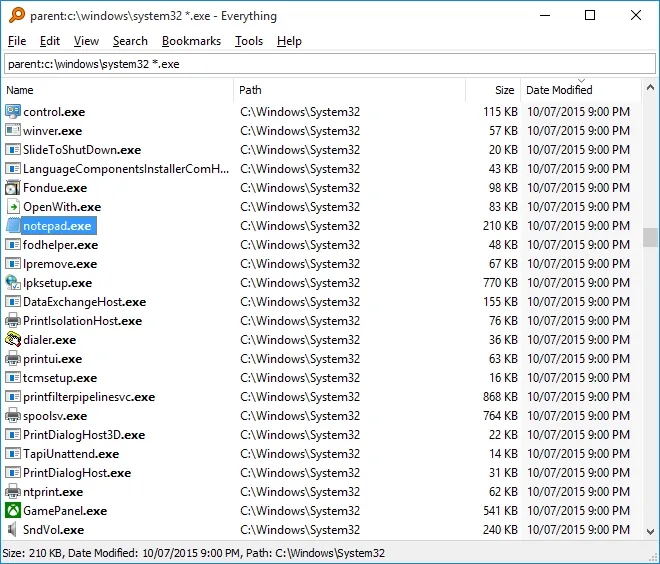
Here’s the magic: Everything doesn’t scan files the way Windows Search does. Instead, it reads the NTFS Master File Table (MFT)—basically the system’s own index of every file on the drive. This means:
- Instant results: Typing a search feels like autocomplete.
- Minimal CPU/RAM usage: No heavy indexing service hogging your system.
- Always up-to-date: File changes are reflected almost instantly.
Think of it as the sysadmin equivalent of going from dial-up to fiber. Once you try it, you’ll never go back.
Key Benefits for Power Users, Admins, and Self-Hosting Enthusiasts
This isn’t just a “faster search.” It’s a workflow upgrade. Here’s why:
- Locate config files instantly: Hunting down that rogue
.confor.yamlfile? Done. - Audit and troubleshoot faster: Spot huge log files or leftover install folders in seconds.
- Cross-drive searching: Works across all NTFS drives without manual setup.
- Regex and advanced queries: Perfect for scripting and automation.
- Network shares and NAS devices: With the right configuration, you can index remote locations.
For those of us running homelabs and self-hosted setups, Everything is a lifesaver. Imagine trying to find that single Docker Compose file buried in D:\Projects\Docker\old-backups\… a quick search and boom, there it is.
Everything + Start11 = A Perfect Match
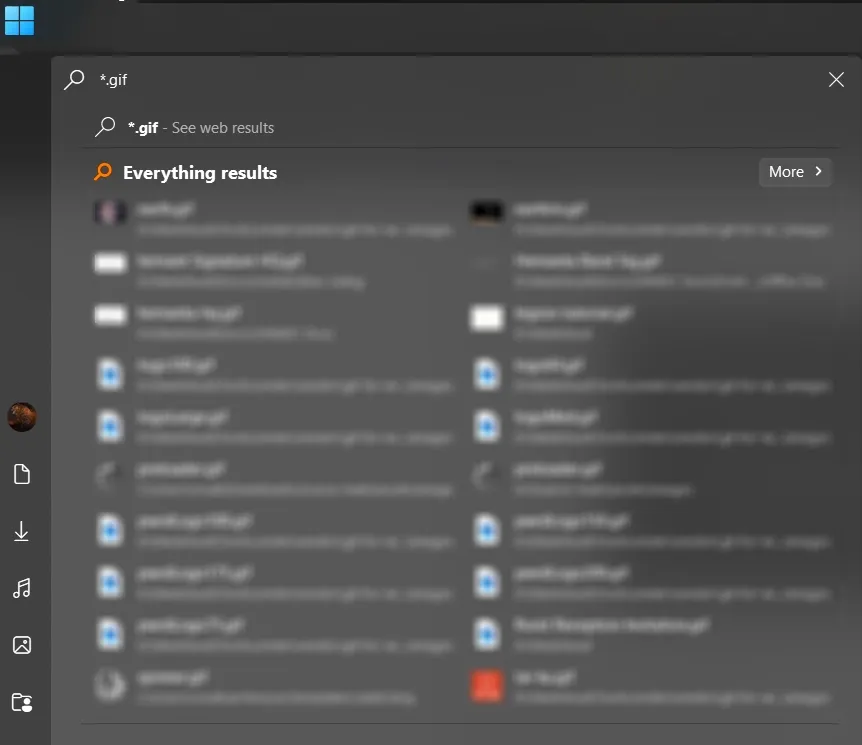
Here’s where it gets even more interesting. If you use Start11 (a Start menu replacement tool that many of us swear by), you can integrate Everything right into the menu. That means when you hit the Start key and search, you’re not waiting on Windows Search—you’re tapping into Everything’s speed.
Benefits of Start11 + Everything Integration
- Unified search experience: Launch apps, find files, and dig into system folders from one box.
- Customizable workflow: Tailor the Start menu to use Everything as the default search provider.
- Zero friction: No more mental shift between “Start search for apps” vs. “Everything search for files.”
This combo makes your Start menu feel like a real productivity tool, not a bottleneck.
Real-World Examples: How Everything Saves Time
Let’s put this into context with scenarios you’ve probably faced:
- Sysadmin emergency:
You need to findnginx.confacross multiple drives right now. With Windows Search, you’re pacing. With Everything, it’s open in two keystrokes. - Homelab tinkering:
You want to locate every.docker-compose.ymlon your system to check old setups. A quick wildcard search (*.yml) brings them up instantly. - Storage cleanup:
Looking for all.isofiles larger than 5GB? Everything handles size filters like a champ. - Dev productivity:
You’re bouncing between projects and need to opensettings.jsonburied deep in your VS Code configs. No need to remember the path—just search and launch.
Advanced Features for Power Users
Everything isn’t just about speed. Dig a little deeper and you’ll find features that make it the file search tool for power users:
- Search operators: Combine queries with
AND,OR,NOT. - Filters and bookmarks: Save frequent searches for one-click reuse.
- Command line support: Automate file discovery in scripts.
- HTTP server mode: Run Everything as a mini search server for your network.
For admins and self-hosters, the last point is especially juicy—you can give yourself a browser-based search for all files on a server.
Why Everything Beats Every Other Windows Search Tool
At the end of the day, Everything isn’t just faster—it’s smarter, lighter, and more reliable than anything Microsoft ships. Combined with tools like Start11, it transforms your Windows environment into a lean, efficient powerhouse.
FAQ: Everything Search Tool
Q: What is Everything?
A: Everything is a free Windows search tool that indexes your NTFS drives instantly by reading the Master File Table. It delivers lightning-fast, real-time file searches with minimal system overhead.
Q: How does Everything integrate with Start11?
A: Start11 can be configured to use Everything as its backend search engine, giving you fast, reliable results directly from the Start menu.
Q: Is Everything safe to use for admins and enterprise setups?
A: Yes. Everything is lightweight, widely used, and trusted in enterprise environments. It doesn’t modify files—it only indexes filenames and metadata.
Conclusion: Stop Waiting on Windows Search
If you’re serious about productivity, self-hosting, or system administration, Everything is a must-have. It’s the kind of tool that earns a permanent spot in your setup because it simply saves you time every single day.
Don’t let Windows Search slow you down. Grab Everything, pair it with Start11, and take back control of your workflow.
Home, away and third shirts offer different ways to represent a team. When choosing between fan and player cuts, retro Atlético de Madrid jersey(camiseta retro del Atlético de Madrid) points to the correct shirt context. Supporters can compare current and classic versions without losing sight of team identity.
Ready to Supercharge Your Workflow?
👉 Download Everything today and see the difference.
And if you enjoyed this guide, sign up for the GeekNP newsletter to get more tips on servers, networking, security, and self-hosting straight to your inbox. Or follow us on your favorite platform—we’re always sharing practical tools and tricks for power users like you.