Homepage: My Self-Hosted Dashboard for Remembering Everything
Learn how to deploy Homepage in Docker to track apps, create a clickable inventory, and monitor services with widgets like Zabbix and QNAP.

I’ll be honest: I forget what I’ve deployed all the time. My homelab has turned into a digital junk drawer — Docker containers, VMs, NAS shares, random web apps… sound familiar? That’s where Homepage saves my sanity. It’s a slick, self-hosted dashboard that turns your sprawl of services into a clean, clickable inventory with uptime checks built in. In this post, I’ll show you exactly how I run Homepage in Docker — plus the widgets I rely on (Zabbix, QNAP, and more) to see my infrastructure health at a glance.
Why Homepage? The Problem → The Solution
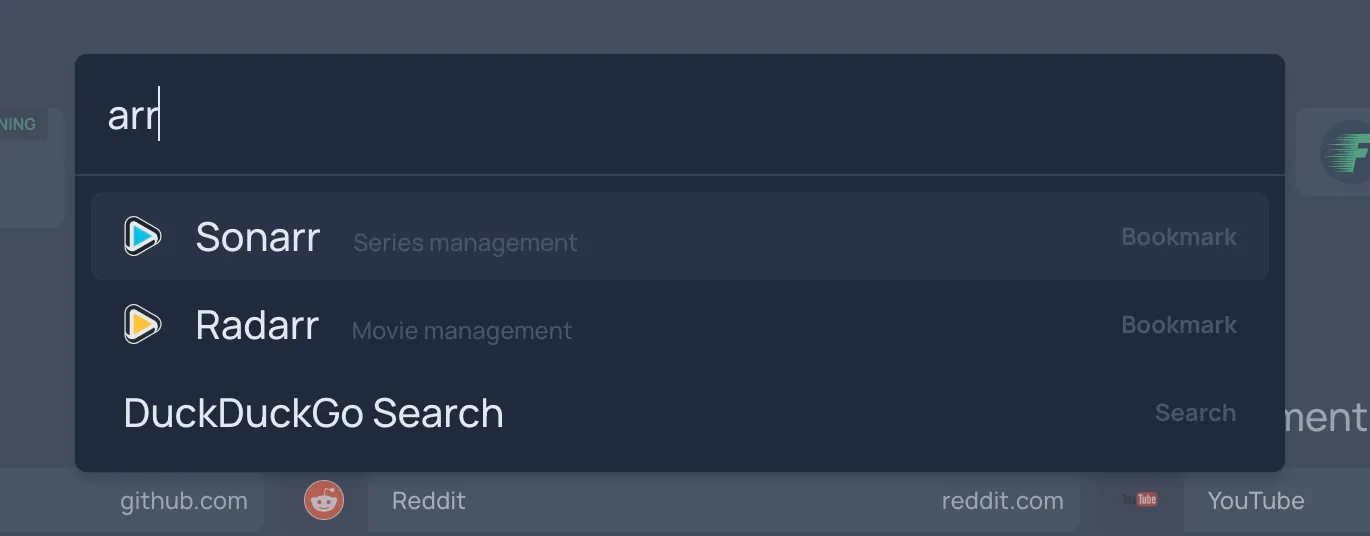
Homepage is my “single pane of glass” for the homelab.
Here’s why it’s become indispensable:
- Memory Saver: I deploy so many containers I lose track. Homepage shows me everything on one screen.
- Clickable Inventory: Each service gets an icon and link. No more digging through bookmarks.
- At-a-Glance Health: Built-in widgets tell me what’s up, what’s down, and what’s breaking before users call me.
- Docker Integration: It can auto-list your running containers using the Docker socket (read-only, if you’re careful).
Pro Tip: Homepage isn’t just for homelab. Small IT teams use it as a simple “asset + status” portal — think mini-NOC board for your apps.
Homepage solves the three headaches of modern homelabbing: forgetting deployments, fumbling for URLs, and guessing what’s down.
Key Features That Matter for Ops
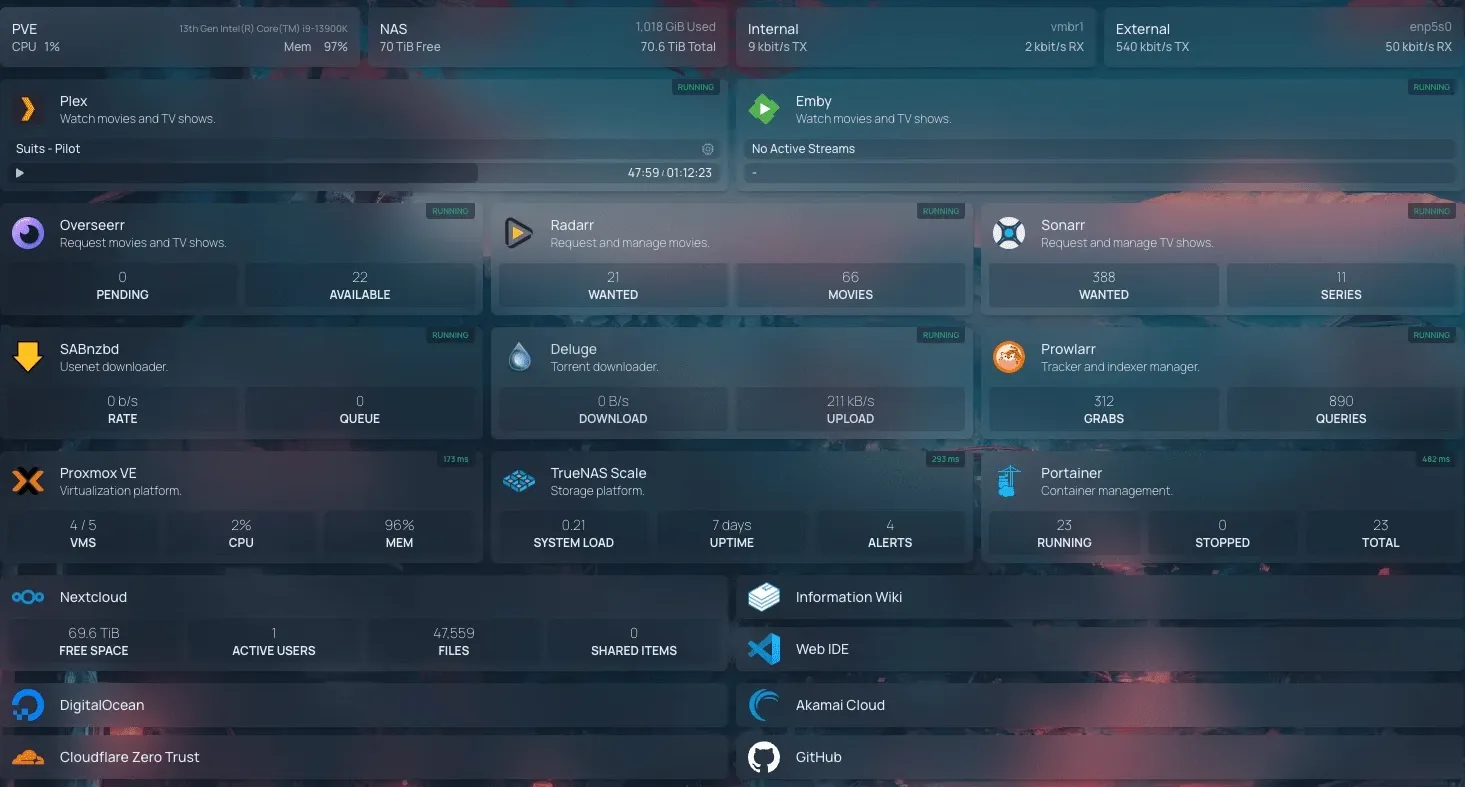
- Service Groups & Icons: Organize apps into groups (Media, Infra, Tools). Homepage ships with hundreds of icons or you can add your own.
- Quick Checks: Native monitoring checks plus integrations with Zabbix, QNAP, Nextcloud, Proxmox, etc.
- Widgets & Info Panels: See storage usage, system load, disk space, or alert counts without opening another tab.
- Docker Integration: List running containers automatically (needs Docker socket).
Gotcha: YAML indentation matters. A single space off in your
config.yamlcan break the whole dashboard. Keep examples handy.
Think of Homepage as a customizable control panel — services on the left, widgets on the right, status at the top.
Installation Guide
Let’s get you running. I assume you already have Docker, Docker Compose, and a reverse proxy manager like Nginx Proxy Manager set up.
Prerequisites
- Docker + docker compose plugin
- Linux host (Debian/Ubuntu or similar)
- External Docker network for your reverse proxy
- Your UID/GID (check with
idcommand)
Recommended Folder Layout
/home/youruser/homepage/
├── config/      # Homepage YAML configs
├── icons/       # Custom icons
└── docker-compose.yml
Create it:
mkdir -p ~/homepage/{config,icons}
cd ~/homepage
Set ownership:
sudo chown -R $USER:$USER ~/homepagePro Tip: Keeping config and icons in separate volumes makes upgrades painless.
docker-compose.yml
Use my production file as a template:
version: "3.8"

services:
  homepage:
    image: ghcr.io/gethomepage/homepage:latest
    container_name: homepage
    ports:
      - "4000:3000"
    volumes:
      - ./config:/app/config
      - ./icons:/app/public/icons
      - /var/run/docker.sock:/var/run/docker.sock:ro # Optional: for Docker integration
    environment:
      HOMEPAGE_ALLOWED_HOSTS: "dashboard.example.com" # Or your domain if used behind a reverse proxy
      PUID: 1000  # Your local user ID
      PGID: 1000  # Your local group ID
    restart: unless-stopped
    networks:
      - proxy-tier

networks:
  proxy-tier:
    external: true
Bring it up:
docker compose up -dCheck logs:
docker compose logs -fUpdate later with:
docker compose pull && docker compose up -dReverse Proxy Notes
- Point your reverse proxy at
http://yourhost:4000. - Set your hostname (e.g.
dashboard.example.com) and enable SSL there.
Creating the External Network
If proxy-tier doesn’t exist, create it with:
docker network create proxy-tierWith just a few commands, you’ve got Homepage running in Docker, behind a reverse proxy, and ready for config.
Line-by-Line Breakdown of the Compose File
Let’s demystify what each line does:
- version: “3.8” — Compose file format.
- services: — Start of container definitions.
- homepage: — Name of our service.
- image: — Pulls the official Homepage image from GitHub Container Registry.
- container_name: — Names the container
homepagefor easydocker ps. - ports: — Maps host port 4000 to container port 3000. (Skip if only behind a reverse proxy.)
- volumes:
./config:/app/config— Local config folder mounted into the container../icons:/app/public/icons— Custom icons folder./var/run/docker.sock:/var/run/docker.sock:ro— Optional read-only Docker socket for auto-listing containers.
- environment:
HOMEPAGE_ALLOWED_HOSTS— Security setting so only your domain/host can access it.PUID/PGID— Match your Linux user to avoid permissions hell.
- restart: unless-stopped — Auto-restart unless explicitly stopped.
- networks: — Attaches container to
proxy-tierfor reverse proxy access. - networks: proxy-tier external: true — Uses an existing network shared by your proxy.
Gotcha: If your icons don’t show, check permissions on the
icons/folder.
Each directive is doing something intentional — understanding it helps with troubleshooting and upgrades.
Configuration 101
Your main config lives in ~/homepage/config/. Inside you’ll find:
- services.yaml — Where you list services, groups, and URLs.
- widgets.yaml — Where you define widgets like Zabbix, QNAP, etc.
- settings.yaml — Global settings such as theme, layout, and auth options.
Add or edit YAML files, then refresh Homepage in your browser to see changes.
Security Quick Wins
- Use your reverse proxy’s authentication/SSO if possible.
- Keep the Docker socket read-only or disable it entirely if you don’t need auto-listing.
- Don’t expose port 4000 directly to the internet.
Pro Tip: Keep a backup of your config folder. Restoring the dashboard is then a single
docker compose up -d.
Config lives in a predictable place, is YAML-based, and plays nicely with Git for versioning.
Monitoring & Widgets
Widgets are where Homepage shines. Here are three minimal working examples you can copy-paste into your widgets.yaml.
Zabbix Widget
- zabbix:
    url: https://zabbix.example.com
    username: youruser
    password: yourpass
    # Shows host status and problems at a glance
What it does: Pulls alert counts and host states directly from your Zabbix server.
QNAP Widget
- qnap:
    url: https://qnap.example.com
    username: admin
    password: yourpass
    # Displays storage and system health
What it does: Checks your QNAP NAS for health metrics and drive status.

Generic HTTP / Ping Checks via services.yaml
Use siteMonitor for HTTP/HTTPS checks or ping for ICMP checks.
Using siteMonitor (HTTP/HTTPS)
- Group A:
    - Sonarr:
        icon: sonarr.png
        href: http://sonarr.host/
        siteMonitor: http://sonarr.host/

- Group B:
    - Radarr:
        icon: radarr.png
        href: http://radarr.host/
        siteMonitor: http://some.other.host/
Using ping (ICMP)
- Group A:
    - Sonarr:
        icon: sonarr.png
        href: http://sonarr.host/
        ping: sonarr.host

- Group B:
    - Radarr:
        icon: radarr.png
        href: http://radarr.host/
        ping: some.other.host
**Pro Tip:**Use
siteMonitor:for web apps and APIs.Useping:for devices that don’t run HTTP (switches, NAS, etc.).Icons can be your own PNGs in~/homepage/iconsor a built-in Material Design Icon.Indentation matters: Groups are a list, services are nested lists under each group.
Troubleshooting & Tips
- Permissions Errors: Double-check UID/GID on your config and icons folders.
- Missing Network: Create
proxy-tierbefore starting containers. - 400 Errors / Host Validation: Make sure
HOMEPAGE_ALLOWED_HOSTSmatches your domain. - Icons Not Showing: Path or permissions usually to blame.
- YAML Indentation: Use a YAML linter if things break unexpectedly.
Pro Tip: Start small — one widget, one service — then expand. It’s easier to troubleshoot incrementally.
Most issues boil down to permissions, networks, or YAML typos.
Wrapping Up
Homepage is one of those “why didn’t I do this sooner?” tools. In a few minutes you’ve built a clean, clickable dashboard for all your services, with live health widgets baked in. Start with my docker-compose.yml, tweak the widgets, and soon your homelab will feel less like chaos and more like a proper control center.
Check out the official Homepage GitHub repo for full documentation, and revisit GeekNP’s self-hosting section for more self-hosting guides.
If you found this guide useful, subscribe to GeekNP or follow us on social — you’ll get more practical homelab and sysadmin tips straight to your inbox.
All configurations shown here are examples only. Adjust to your environment and security requirements before deploying.
Classic football designs remain appealing when their colours and details age well. When fit and season are both important, Manchester City jersey for fans(camiseta del Manchester City para aficionados) keeps the choice tied to the intended team. Good care and suitable storage help preserve the shirt’s appearance over time.