Running AI Models Locally with Pinokio
Learn how to run AI models locally using Pinokio. A practical guide for sysadmins and homelab users testing AI tools with local GPUs.

Interest in running AI models locally has increased significantly in recent years. Developers, sysadmins, and homelab users are increasingly experimenting with AI tools without relying on cloud APIs or external services.
However, running AI software locally often involves complex setup steps. Many AI tools require manually configuring Python environments, installing CUDA libraries, resolving dependency conflicts, and downloading large model files before anything works.
This is where Pinokio becomes useful.
Pinokio is a desktop application that simplifies installing and running AI tools locally. It provides a GUI-driven interface that automates environment setup and dependency installation, allowing users to experiment with AI applications without complex command-line configuration.
For users who want to quickly test new AI models, Pinokio provides a practical way to experiment without spending significant time configuring environments.
What Pinokio Does
Pinokio acts as a launcher and environment manager for AI applications.
Many AI tools rely on multiple components such as:
- Python environments
- CUDA libraries
- machine learning frameworks (PyTorch, TensorFlow)
- model weights
- additional runtime dependencies
Installing these manually can quickly become complicated, especially when different tools require different versions of libraries.
Pinokio simplifies this process by using automated installation scripts and managed environments. When installing an application through Pinokio:
- The application repository is downloaded
- Dependencies are automatically installed
- Required environments are created
- The application is launched with the correct runtime configuration
This approach removes much of the manual setup that typically comes with running AI software locally.
Instead of troubleshooting dependency issues, users can focus on testing and experimenting with AI tools.
Installing Pinokio
Installing Pinokio is straightforward and does not require complex configuration.
Typical workflow:
- Download Pinokio from its official website
- Install the application
- Launch Pinokio
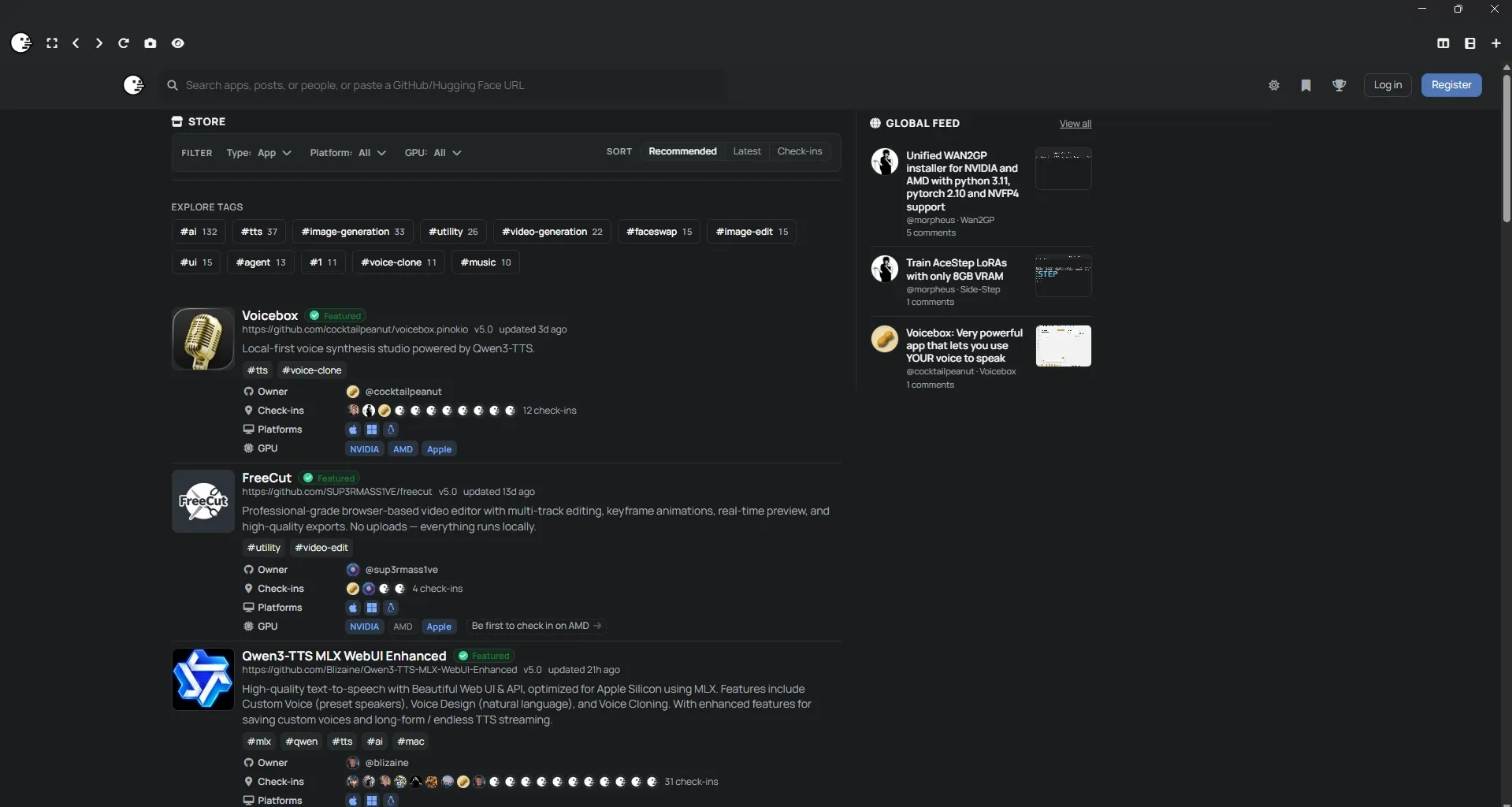
- Browse the application library
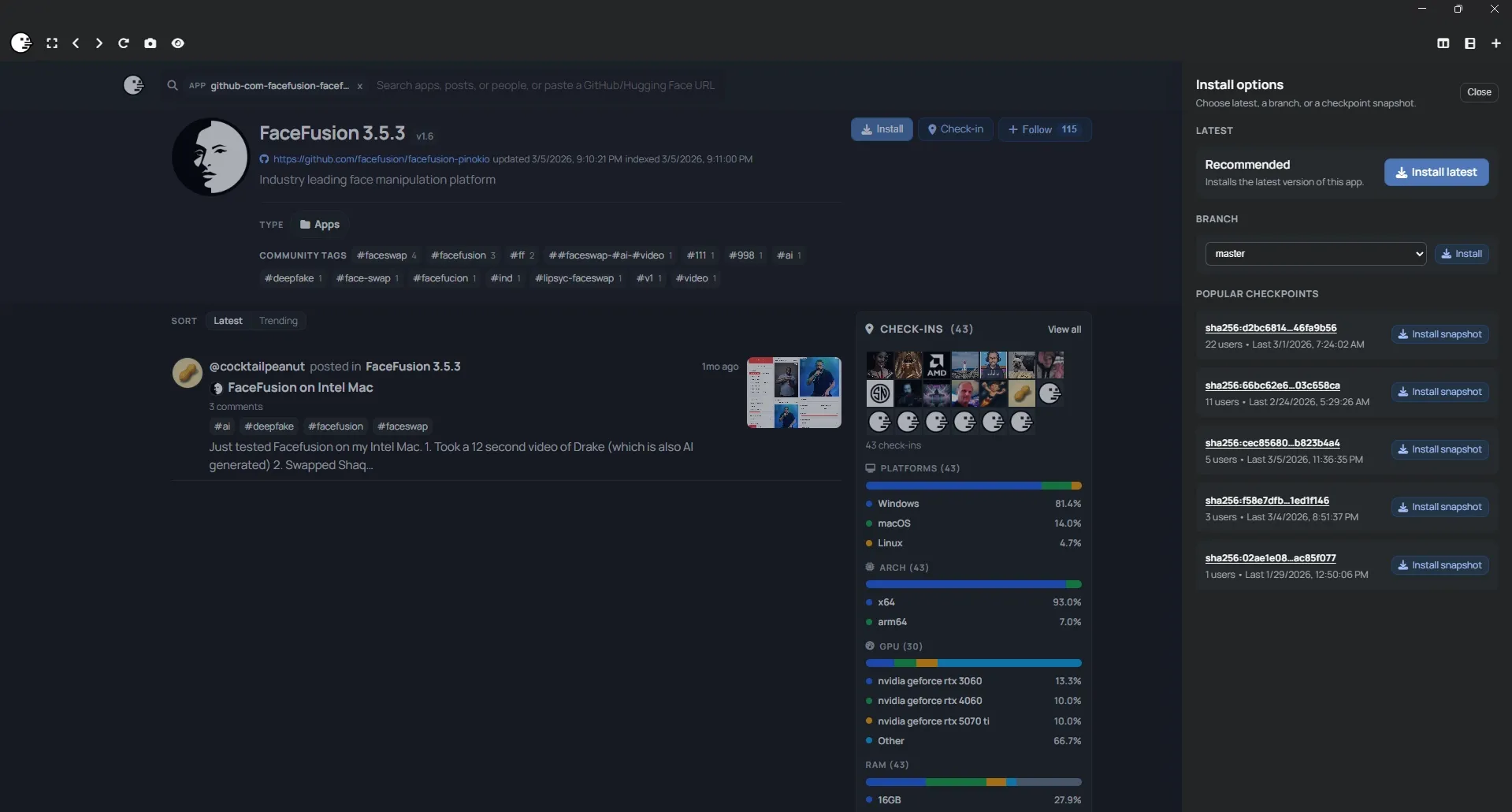
- Install AI tools directly from the interface
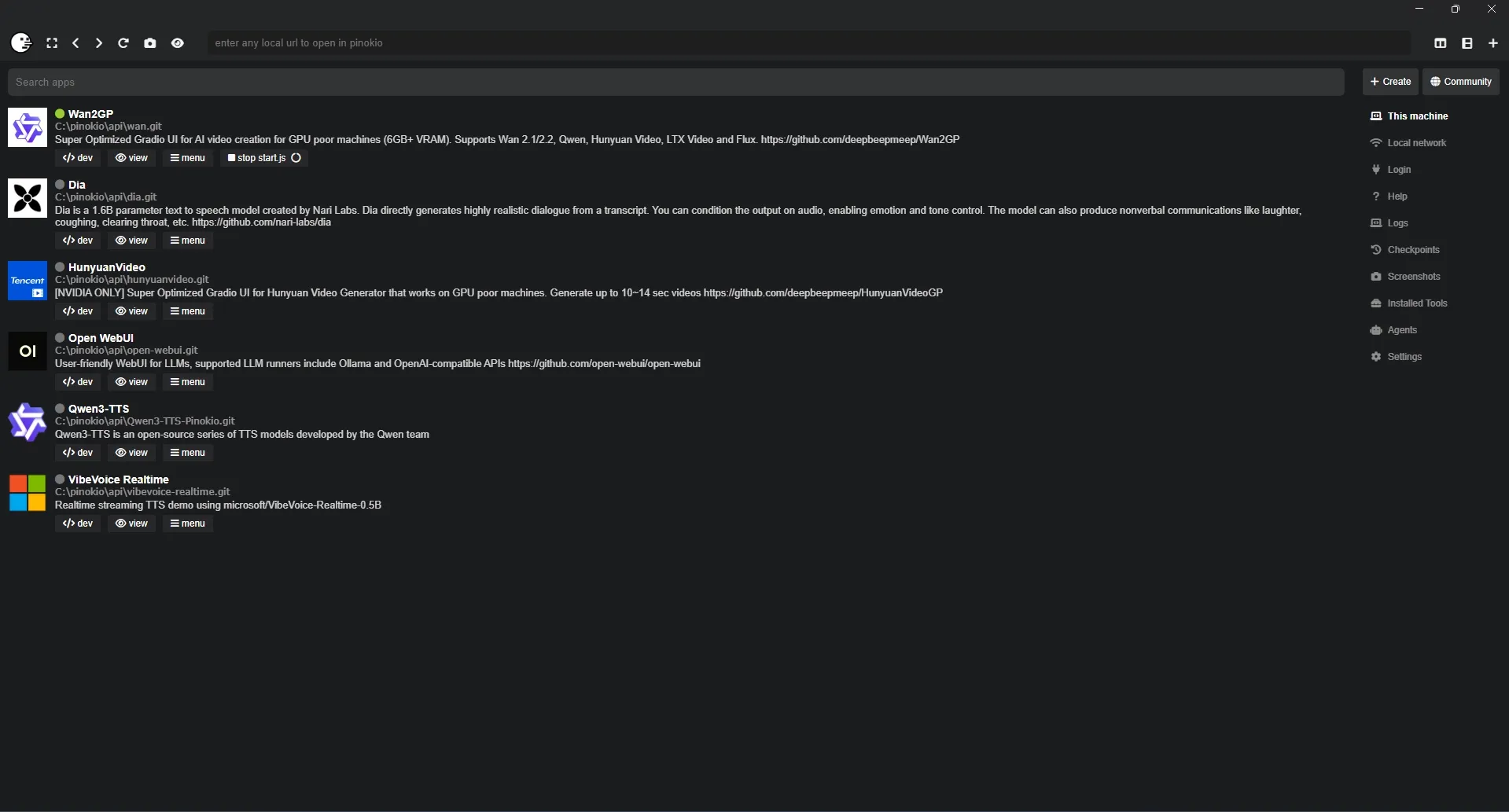
Once launched, Pinokio presents a dashboard where users can browse supported AI applications.
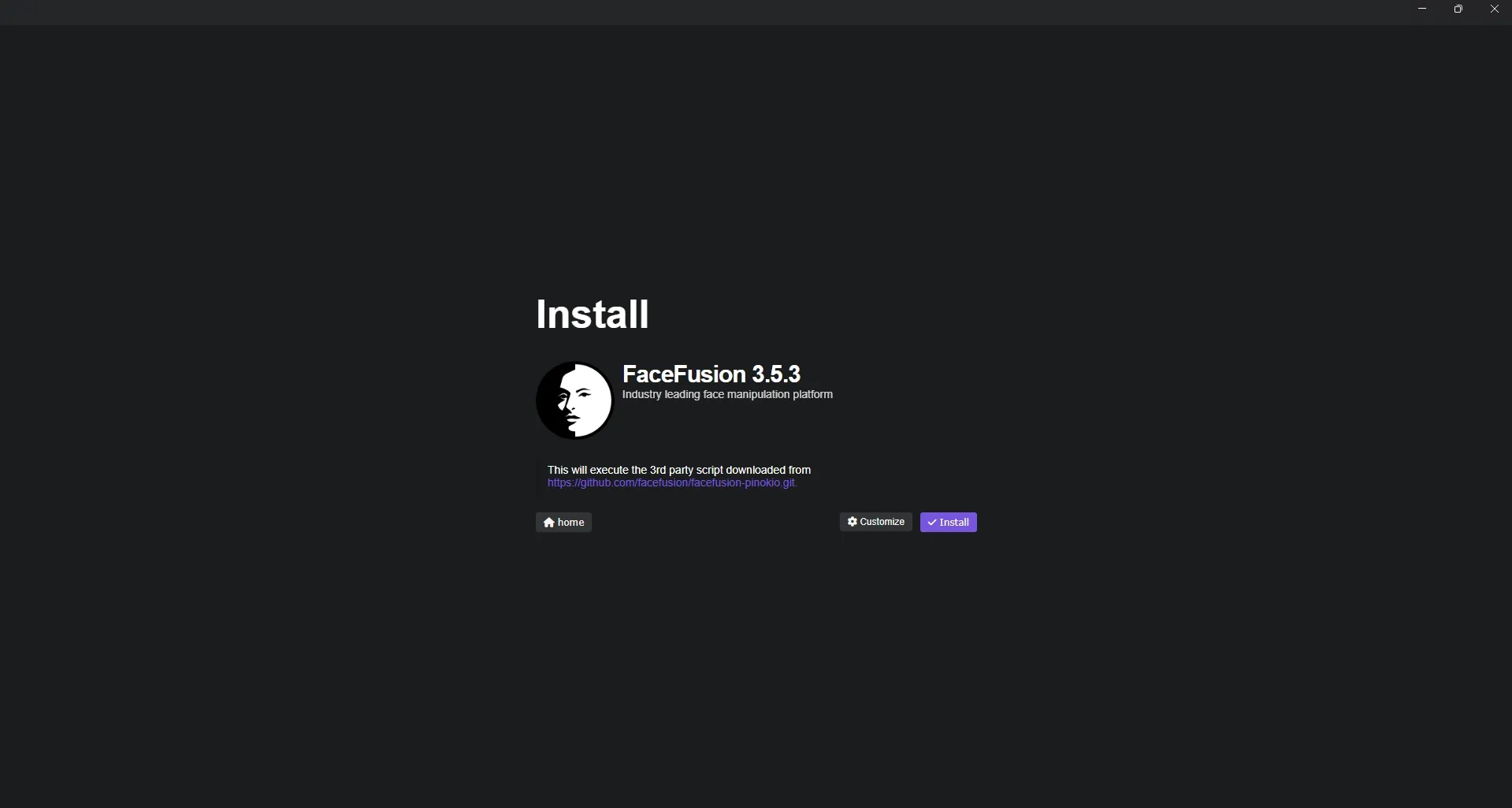
Selecting an application and clicking Install automatically performs the required setup steps including dependency installation and environment preparation.
After installation, most tools can be launched directly from the Pinokio interface.
Many applications expose a local web interface, allowing users to interact with them through a browser.
GPU Requirements for Local AI
Modern AI models are computationally intensive. Running them locally usually requires a GPU.
While some models can run on CPU, performance is typically much slower.
The most important hardware factor is GPU VRAM. The amount of available VRAM determines which models can run and how large those models can be.
Common AI workloads include:
- image generation
- video generation
- text-to-speech
- large language models
Smaller models may run on GPUs with 8–12 GB of VRAM, while larger models require significantly more.
AI Models That Can Be Tested Using Pinokio
Pinokio supports many AI applications and model types.
Some examples include:
DIA
DIA is used for generating speech or dialogue audio from text input. Tools like this can be useful for generating narration for videos or other audio content.
Wan / Wan2GP
Wan models are commonly used for image-to-video or text-to-video generation. These models allow users to experiment with generating short AI-generated video clips.
Qwen3 TTS
Qwen-based text-to-speech models generate natural-sounding speech from written text.
These models are useful for:
- narration
- voice generation
- automated audio content
Beyond individual models, Pinokio provides tools across several categories.
Text-to-Speech Models
Convert written text into synthesized speech. These are commonly used for narration or accessibility tools.
Image Generation Models
Generate images from text prompts. These models are widely used for visual content generation.
Video Generation Tools
Generate short video clips from images or text prompts. These models are more computationally demanding.
LLM Interfaces
Some applications provide interfaces for running local large language models without relying on cloud APIs.
User Interface
Many tools launched through Pinokio expose a web-based interface.
These interfaces are often built using frameworks such as:
- Gradio
- Streamlit
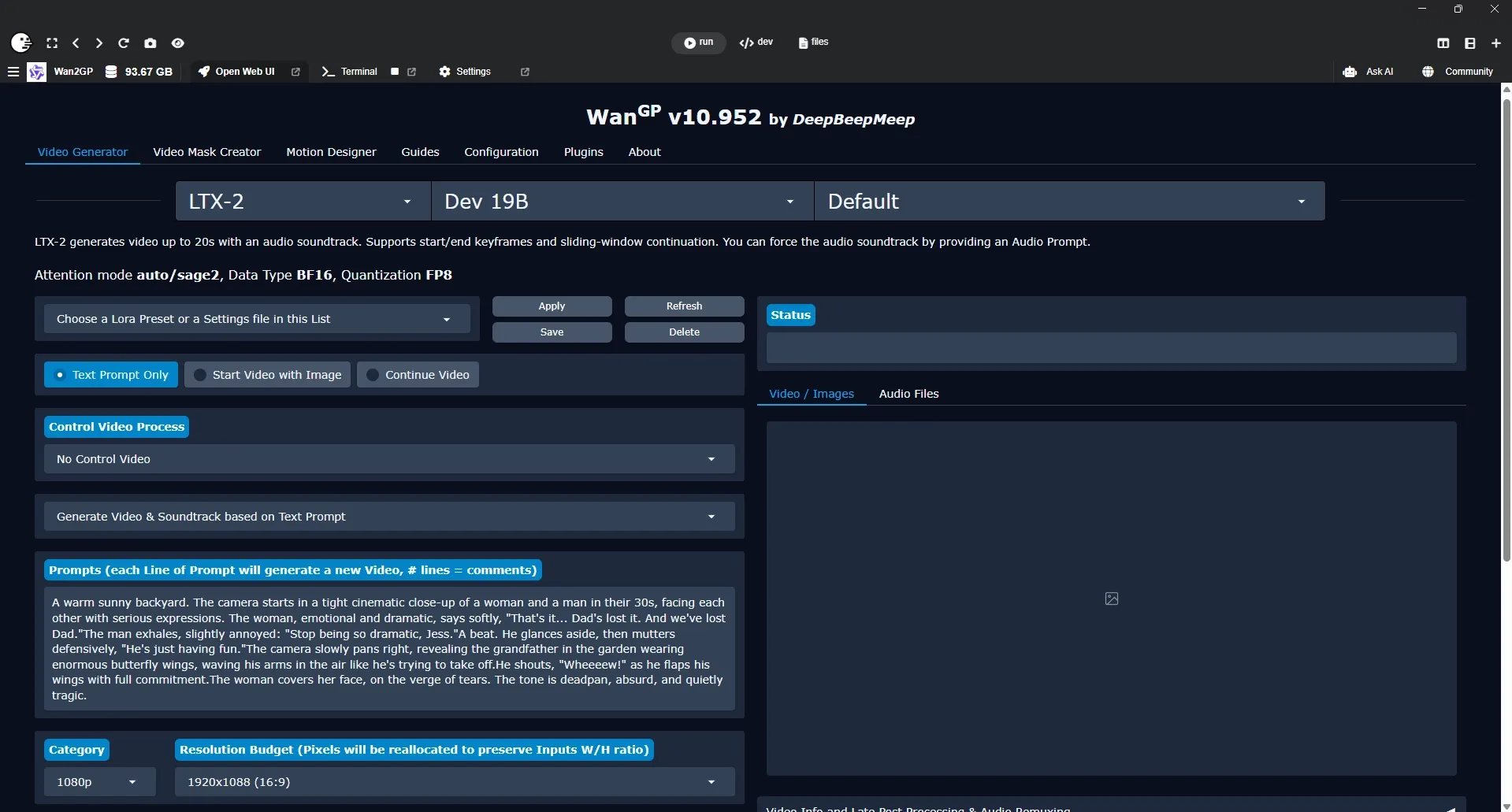
This approach allows users to interact with models through a visual interface instead of command-line tools.
Advantages include:
- easier parameter adjustment
- visual previews of generated outputs
- faster experimentation
For many users, this makes experimenting with AI models significantly easier.
Other Tools in the Local AI Ecosystem
Several tools exist for running AI locally.
Tool
Primary Use
Pinokio
AI application launcher
ComfyUI
Advanced AI workflows
Ollama
Local LLM serving
LM Studio
GUI interface for LLMs
ComfyUI
Primarily used for building visual workflows for image generation and other AI pipelines.
Ollama
Designed for running and serving local large language models.
LM Studio
Provides a graphical interface for interacting with local language models.
Pinokio differs from these tools by acting primarily as an AI application installer and launcher.
Recommended Hardware for Local AI Testing
Hardware capabilities strongly influence which models can run locally.
Beginner Setup
Typical configuration:
- consumer GPU
- 8–16 GB VRAM
- moderate CPU
- 32 GB system RAM
This setup can run:
- smaller image generation models
- lightweight TTS models
- small language models
Advanced Setup
More powerful systems allow testing larger AI workloads.
Example configuration:
- high VRAM GPU (example: NVIDIA L40S)
- 64–128 GB system RAM
- fast NVMe storage
These systems allow experimentation with larger models including video generation tools.
Pros and Cons of Pinokio
Pros
- simple GUI interface
- automated dependency installation
- beginner-friendly setup
- fast way to test AI applications
Cons
- limited customization compared to manual setups
- dependent on supported applications
- less control over environment configuration
Pinokio for AI Content Creation
Pinokio can also be useful for experimenting with AI-driven content creation.
Examples include:
- generating short AI videos
- creating text-to-speech narration
- generating images for visual content
For creators exploring AI tools, Pinokio provides a straightforward starting point.
When to Use Pinokio
Pinokio is useful in scenarios such as:
- quickly testing AI models
- experimenting with new AI tools
- learning local AI workflows
- running local demos or experiments
For engineers and homelab users, it can act as a sandbox for testing different AI workloads.
Running AI models locally traditionally required significant effort to configure dependencies and runtime environments.
Pinokio simplifies this process by providing a GUI-based platform that automates installation and launches AI tools with minimal manual configuration.
For sysadmins, engineers, and homelab users interested in experimenting with AI models, this makes it significantly easier to explore different tools and workflows.
Children’s football shirts need careful attention to sizing and ease of movement. For a closer look at the relevant shirt category, Atlético de Madrid jersey(camiseta del Atlético de Madrid) identifies the matching option. Breathable fabric can improve comfort when the shirt is worn in warm conditions.
When combined with capable hardware — particularly GPUs with larger VRAM such as the NVIDIA L40S — users can experiment with more demanding workloads including video generation, speech synthesis, and large language models.
For anyone exploring local AI experimentation, Pinokio provides a practical and accessible starting point.