How to Reduce VMware ESXi VM Disk Size
Step-by-step guide for shrinking VMDK disks in VMware ESXi after accidental expansion. Safe, tested, and sysadmin-friendly.
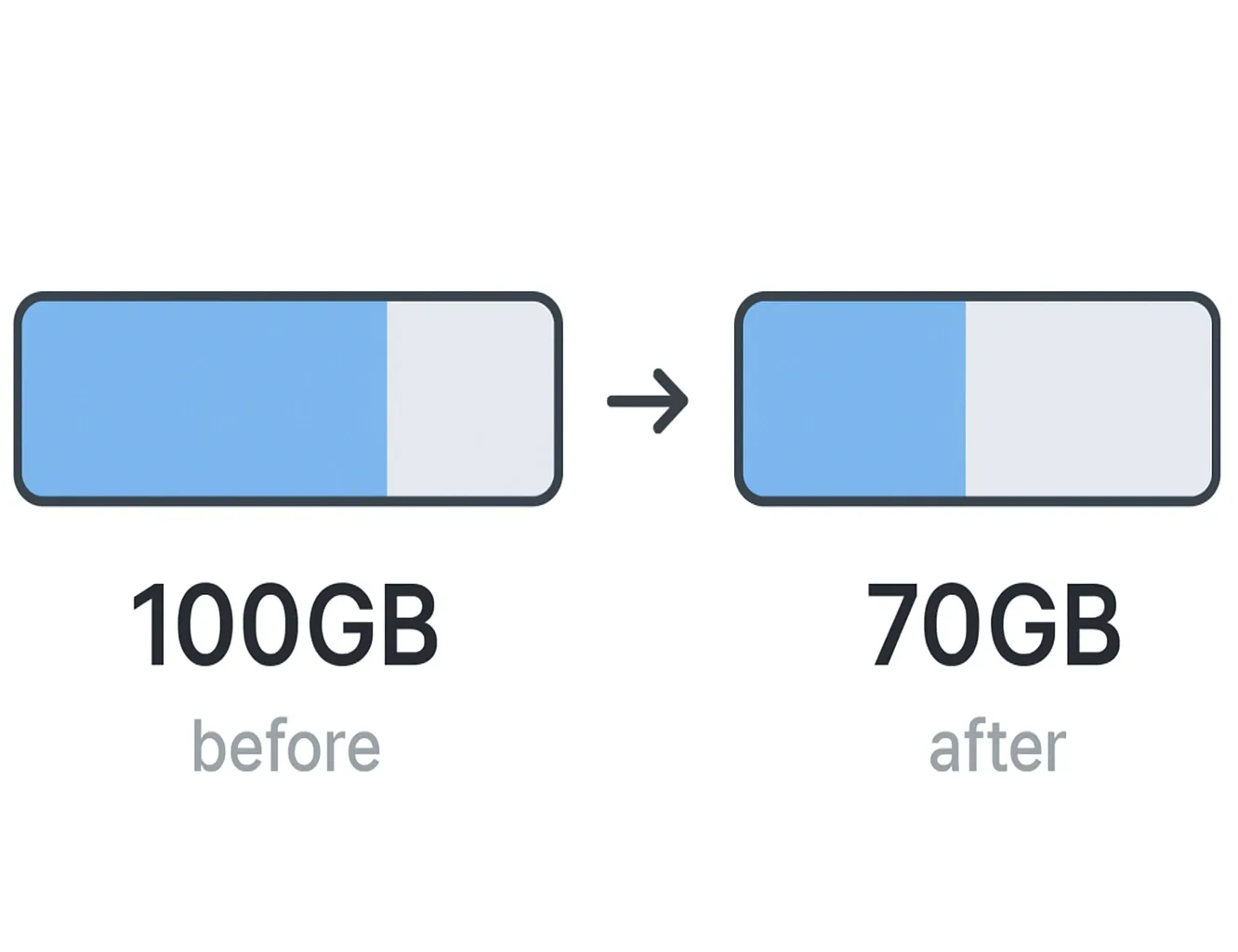
Shrinking a VMDK isn’t officially supported in vSphere, but sysadmins still need to fix “fat finger” disk expansions all the time. After testing this workflow countless times, here’s the safest, most practical, sysadmin-to-sysadmin method to reduce VMware disk size, shrink VMDK files, and avoid data loss.
This tutorial is focused on Windows VMs on ESXi, but I note Linux considerations at the end.
Let’s get straight into it.
Step 1 — Shrink the Windows partition
Before touching ESXi or the VMDK descriptor, you must shrink the actual filesystem inside the guest OS.
Example: You currently have a 100GB virtual disk but want it reduced to 70GB.
- Open Disk Management in Windows.
- Right-click the main partition → Shrink Volume.
- Shrink it so the end of the disk has unallocated space (e.g., 30GB unallocated).


Warning: If Windows cannot shrink due to immovable files, run
defrag, disable hibernation, or temporarily disable pagefile.
Step 2 — Create a clone backup of the VM
This step is not optional.
Since VMware doesn’t support online VMDK shrinking, the only safe fallback is a full clone of the VM.
A snapshot will NOT protect you here — snapshots don’t preserve corrected geometry and cannot undo VMDK descriptor changes.
Warning: Do not continue without a clone. If something goes wrong, there is no recovery without it.
Step 3 — Power off the VM
The VMDK cannot be edited safely while powered on.
Shut it down cleanly and confirm VMware shows the VM as “Powered Off.”
Step 4 — SSH into the ESXi host
Use your terminal of choice:
ssh root@esxi-hostStep 5 — Navigate to the VM folder
Each VM has its own folder under /vmfs/volumes/datastore_name/.
cd /vmfs/volumes/datastore1/my-windows-vm/List the files:
ls -lhIdentify the descriptor VMDK, not the -flat.vmdk.
Example:
myvm_disk1.vmdk← descriptormyvm_disk1-flat.vmdk← actual data
Step 6 — Open the VMDK descriptor in vi
vi myvm_disk1.vmdkStep 7 — Locate the extent description
You’re looking for a line similar to:
RW 209715200 VMFS "myvm_disk1-flat.vmdk"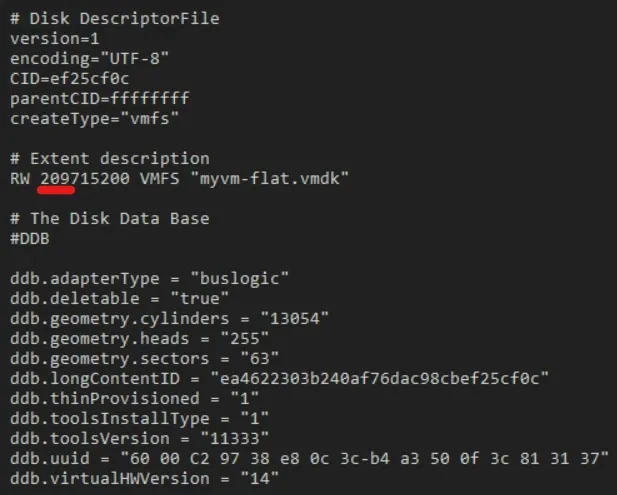
That number (209715200) represents the size of the disk in sectors, not bytes.
Step 8 — Replace the disk size with the new correct value
To compute sectors:
bytes ÷ 512 = sectors
Examples:
- 100GB →
100*1024*1024*1024 / 512 = 209715200 - 70GB →
70*1024*1024*1024 / 512 = 146800640
So you will replace:
RW 209715200 VMFS "myvm_disk1-flat.vmdk"with:
RW 146800640 VMFS "myvm_disk1-flat.vmdk"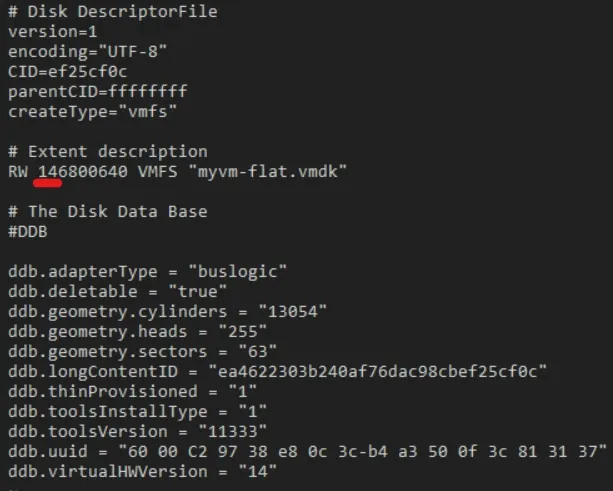
Warning: ONLY correct the sector count. Do NOT alter the filename, adapter type, or any other descriptor fields.
Step 9 — Save the VMDK file
In vi:
:wqStep 10 — Migrate the VM to another datastore
This is the trick that forces ESXi to re-validate the modified descriptor and properly rewrite metadata.
A Storage vMotion works best, but if you’re on free ESXi, just copy the folder to another datastore and re-register the VM.
Why this works:
ESXi recalculates disk geometry during the migrate/copy process, effectively “applying” your new reduced VMDK size.
Step 11 — Verify the new disk size in ESXi
After the migration finishes:
- Open the VM in the ESXi UI.
- Check Edit Settings → Hard Disk.
You should now see the new, lower capacity (e.g., 70GB).

If the disk still shows the old size, you edited the wrong descriptor or didn’t migrate correctly.
Step 12 — Power on the VM and test
Boot Windows and confirm:
- The partition layout is correct
- No filesystem errors appear
- Applications run normally
Once verified, you can delete the full clone (if you choose).
Note on Linux VMs
This workflow also works for Linux VMs only if the filesystem supports shrinking:
- ext4 → ✓ can be shrunk
- XFS → ✗ cannot shrink
- Btrfs → ✓ supports shrinking
- LVM → depends on FS inside
Windows is more predictable, which is why it’s the recommended case for this procedure.
Conclusion
Shrinking a VMware ESXi disk isn’t officially supported, but as sysadmins, we’ve all made the “oops expanded it way too far” mistake. With the right workflow — shrink inside the OS, adjust the VMDK descriptor, migrate, verify — it’s completely doable and safe.
Third shirts often give designers more freedom with patterns and contrasting details. For a focused review of football apparel, FC Barcelona jersey(camiseta del FC Barcelona) names the intended product without changing its meaning. Comparing material and cut helps separate visual preference from practical comfort.