OpenSpeedTest: Run Your Own Self-Hosted Speed Test Server
Set up OpenSpeedTest in Docker to run your own self-hosted network speed test server. Perfect for home labs, VPS, and network troubleshooting.
If you’ve ever wondered how fast your home lab, VPS, or internal network really is, you’re not alone. While public speed tests like Ookla’s are great for testing your internet provider, they’re not built for private networks or lab environments.
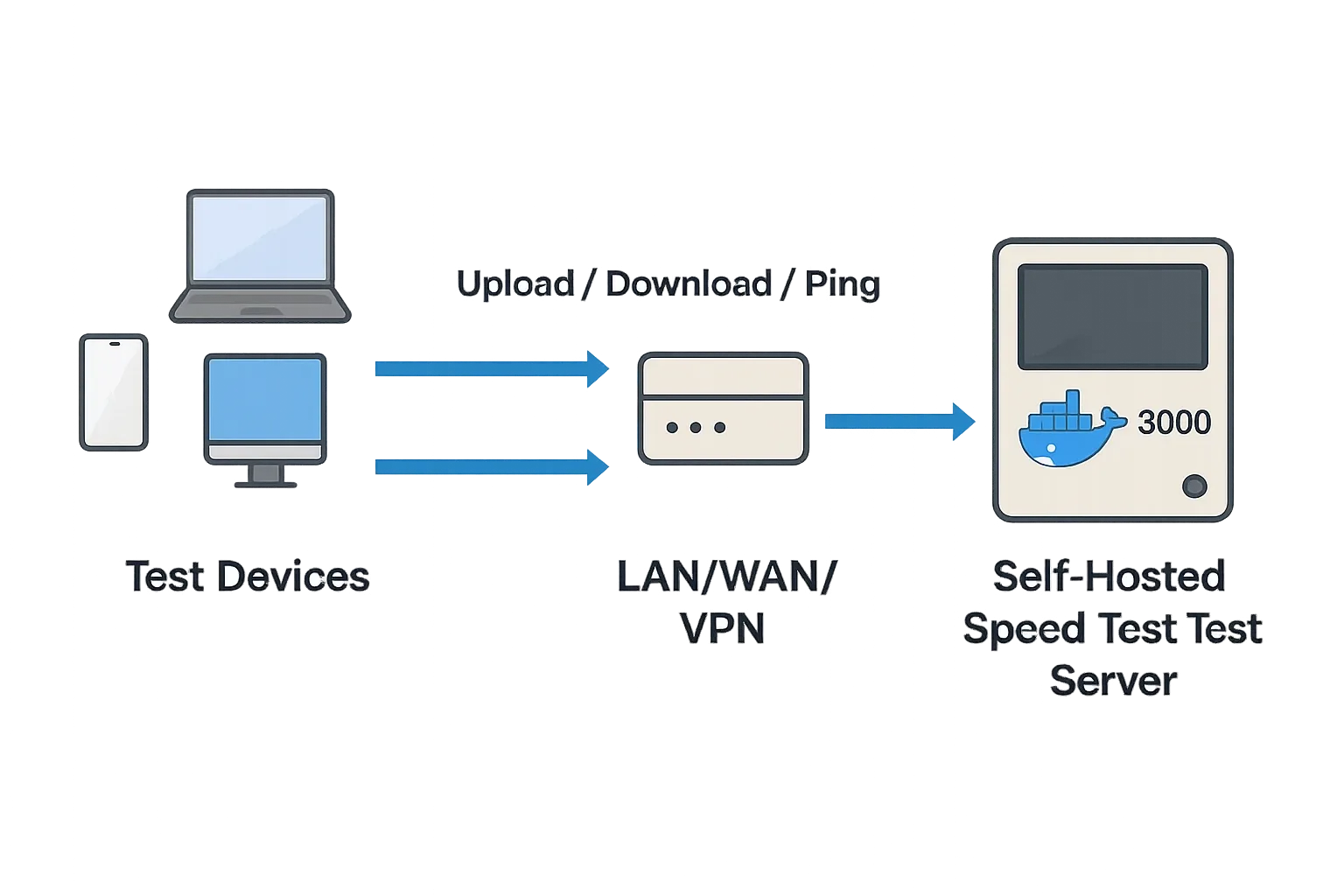
Enter OpenSpeedTest — a self-hosted speed test tool that runs right inside your own infrastructure. By spinning it up with Docker, you can measure upload, download, and latency between any device on your network and your OpenSpeedTest server.
This is perfect for:
- Home labs where you’re testing your Wi-Fi, LAN, or VLAN performance.
- VPS setups where you want to benchmark your server’s bandwidth.
- Troubleshooting network links between two points without relying on third-party servers.
Target keywords for this post: OpenSpeedTest, Docker speed test server, network link troubleshooting, home lab network speed test, self-hosted speed test tool.
What Is OpenSpeedTest?
At its core, OpenSpeedTest is a web-based speed test that you can deploy anywhere. It uses modern browser technologies (like HTML5 and WebSockets) to run upload/download tests without requiring any client installation. You simply point your browser at your server’s URL and run the test.
This makes it ideal for quickly diagnosing LAN, WAN, or VPN issues — no apps to install, no extra software on client machines.
Why Use OpenSpeedTest in a Home Lab or VPS?
- Local measurements: Internet-based tests include external routing and congestion. OpenSpeedTest removes that variable.
- Security: Your data stays within your network — no sending test data to a third party.
- Control: You can tweak bandwidth limits, TLS, and other settings to match your environment.
- Always available: Running 24/7 inside Docker means you can test any time, on any device.
Tool Overview & Docker Installation
How OpenSpeedTest Works Under the Hood
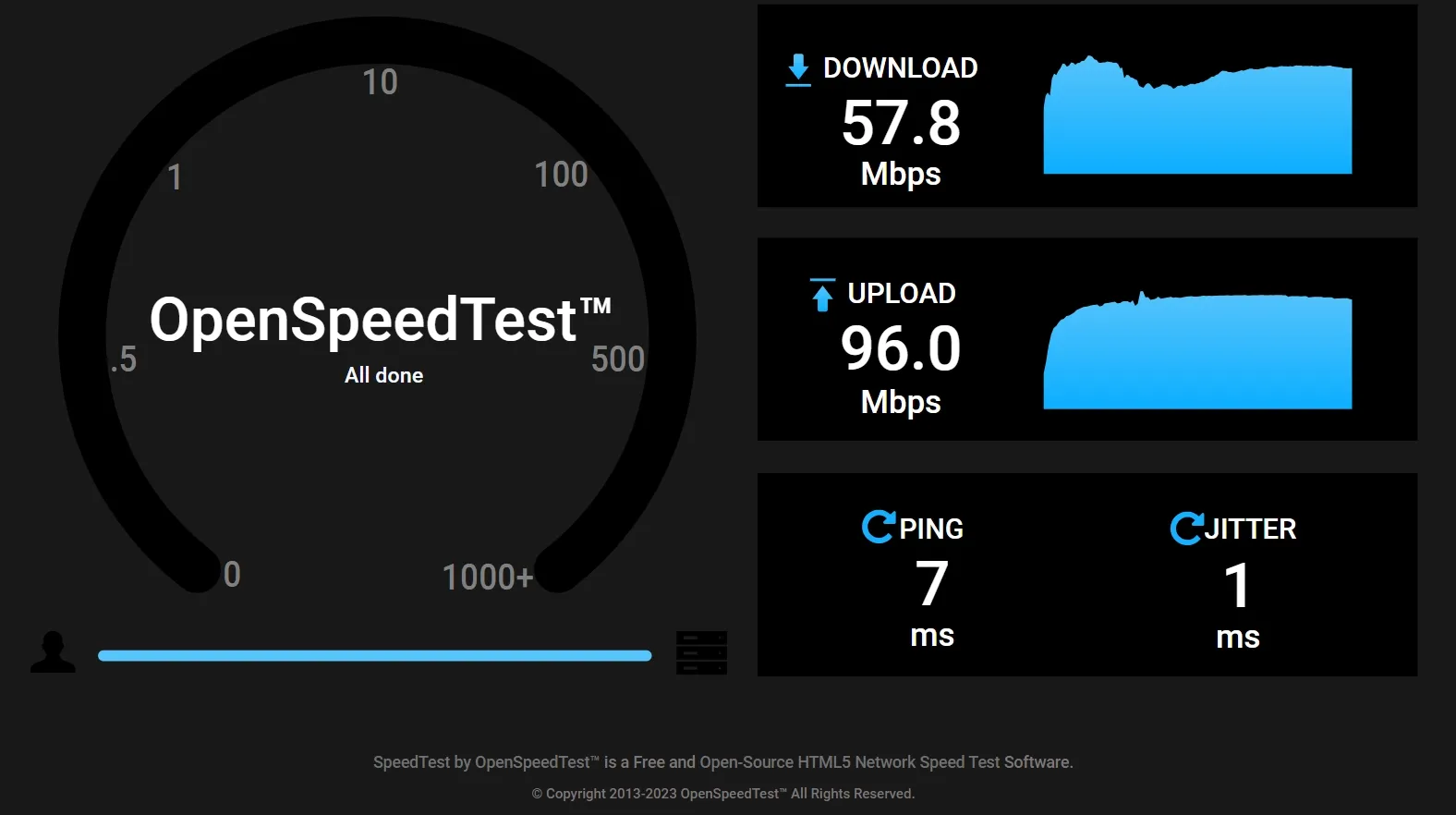
OpenSpeedTest uses a lightweight HTTP/HTTPS server and a WebSocket backend to measure transfer rates between the browser and the server. By sending and receiving chunks of data, it calculates download/upload speed, latency, and sometimes jitter — all from the client perspective.
Because it’s self-hosted, the limiting factor is your own network, not the public internet.
Step-by-Step Guide: Installing OpenSpeedTest in Docker
Prerequisites:
- Docker installed and running.
- Basic familiarity with terminal/SSH.
- An open port on your server (default 3000).
Step 1: Pull the Docker image
docker pull openspeedtest/latestStep 2: Run the container
docker run -d \
  --name openspeedtest \
  -p 3000:3000 \
  openspeedtest/latest
Then open a browser and visit: http://<your-server-ip>:3000
You should see the OpenSpeedTest interface ready to go.

Step 3 (Optional): Use Docker Compose
Create a docker-compose.yml file:
version: '3'
services:
  openspeedtest:
    image: openspeedtest/latest
    container_name: openspeedtest
    restart: unless-stopped
    ports:
      - "3000:3000"
Then run:
docker compose up -dCommon Pitfalls & Simple Fixes
- Port already in use? Change
3000:3000to another port, e.g.,8080:3000. - Firewall blocking traffic? Allow inbound on the port you chose.
- HTTPS required? Run it behind a reverse proxy like Nginx Proxy Manager or Traefik with TLS termination.
- Browser caching weirdness? Hard-refresh the page or clear cache after updates.
Pro Tip: Use
docker logs openspeedtestto troubleshoot startup issues.
Stress Testing with OpenSpeedTest
One of the most powerful but lesser-known features of OpenSpeedTest is its Stress Test mode — essentially continuous speed testing.
Instead of running a single test, Stress Test puts your network under sustained load so you can see how routers, Wi-Fi APs, and servers perform over time.
Why You’d Use It
- Find weak spots in your Wi-Fi or LAN under heavy load.
- Check for overheating or throttling of routers and switches.
- Validate configuration changes (firmware, QoS rules, antenna placement) in near-real time.
Enabling the Stress Test
Assume your server URL is:
http://192.168.1.5:3000
Add a stress parameter to the end of the URL to begin continuous testing:
http://192.168.1.5:3000?Stress=Low
or shorthand:
http://192.168.1.5:3000?S=L
Stress Levels and URL Examples
Stress Level
URL Example
Duration (Upload + Download)
Low
?Stress=Low or ?S=L
5 minutes (300s)
Medium
?Stress=Medium or ?S=M
10 minutes (600s)
High
?Stress=High or ?S=H
15 minutes (900s)
Very High
?Stress=VeryHigh or ?S=V
30 minutes (1800s)
Extreme
?Stress=Extreme or ?S=E
60 minutes (3600s)
Day
?Stress=Day or ?S=D
24 hours (86400s)
You can also specify any custom duration in seconds:
http://192.168.1.5:3000?Stress=5000
Automating or Delaying a Test
Start automatically without clicking Start:
http://192.168.1.5:3000?run
Start after a specific delay (e.g., 45 seconds):
http://192.168.1.5:3000?run=45
Combine stress + run automatically:
http://192.168.1.5:3000?R&S=300
Running Specific Tests Only
Sometimes you only want to run one type of test. You can pass:
- Upload only:
?Test=Uploador?T=U - Download only:
?Test=Downloador?T=D - Ping only:
?Test=Pingor?T=P
Other Handy URL Parameters
- Ping Samples:
?Ping=500sends 501 pings for greater accuracy. - Parallel Connections:
?XHR=1or?X=1to change the default (6) up to 32. - Select Different Server:
?Host=http://192.168.55.1:90to run tests against another OpenSpeedTest instance. - Ping Timeout:
?Out=7000or?O=7000to change the timeout in milliseconds. - Disable Overhead Compensation:
?Cleanor?Cto tweak browser overhead compensation (0–4%).
Quick Workflow Example
- Spin up OpenSpeedTest Server (Docker or native app).
- Open the server’s URL on your testing device.
- Add
?Stress=Highor any parameter you need. - Watch your network handle sustained load in real time.
Pro Tip: Stress Test mode is excellent for Wi-Fi placement and antenna adjustments — move your gear, refresh the test, and instantly see the difference.
Troubleshooting Link Speeds with OpenSpeedTest
Common Network Problems It Can Help Detect
- Latency: High ping times between client and server.
- Jitter: Variation in latency, bad for VoIP/gaming.
- Packet loss: Incomplete data transfer.
- Asymmetric speeds: Upload vs download drastically different.
- Bottlenecks: Identify if the issue is LAN, WAN, or a VPN tunnel.
Example Scenarios
Home Lab Setup:
You’ve got a Proxmox server with multiple VMs and VLANs. You run OpenSpeedTest inside one VM to test how your Wi-Fi and wired clients perform against it.
VPS Network Setup:
You deploy OpenSpeedTest on a VPS in another region to test your ISP’s routing or your VPN’s throughput.
Pro Tip: Always test from multiple devices and at different times of day to get an accurate picture of network performance.
Alternatives to OpenSpeedTest
OpenSpeedTest is great, but it’s not the only self-hosted speed test tool.
LibreSpeed
A lightweight, open-source alternative. Simple and fast, but less flashy UI.
SpeedTest Tracker
Focuses on automatically running tests at intervals and tracking results over time.
Comparison Table
Tool Name
Deployment Method
Key Features
Best Use Case
OpenSpeedTest
Docker container
Modern UI, no client install, quick setup
Instant manual tests on LAN/VPS
LibreSpeed
Docker or manual
Open-source, simple frontend, supports logging
Minimalist self-hosted speed tests
SpeedTest Tracker
Docker container
Scheduled tests, historical charts, uses Ookla servers
Ongoing monitoring of ISP/VPN performance
Did You Know? You can run both OpenSpeedTest and LibreSpeed simultaneously on different ports to compare results.
Conclusion
Pros of OpenSpeedTest
- Super easy Docker deployment.
- No client software needed.
- Works great for LAN, WAN, or VPN tests.
Cons
- Limited built-in logging.
- No automated scheduled testing out of the box.
When Should You Use It?
- Great choice if you want a quick, self-hosted test server with a modern UI.
- Consider alternatives like SpeedTest Tracker if you need automated tracking or historical graphs.
Ready to Try OpenSpeedTest?
With Docker, it’s a one-liner to get started. Spin it up, test your network, and see where the bottlenecks are.
Useful links:
Final Thoughts
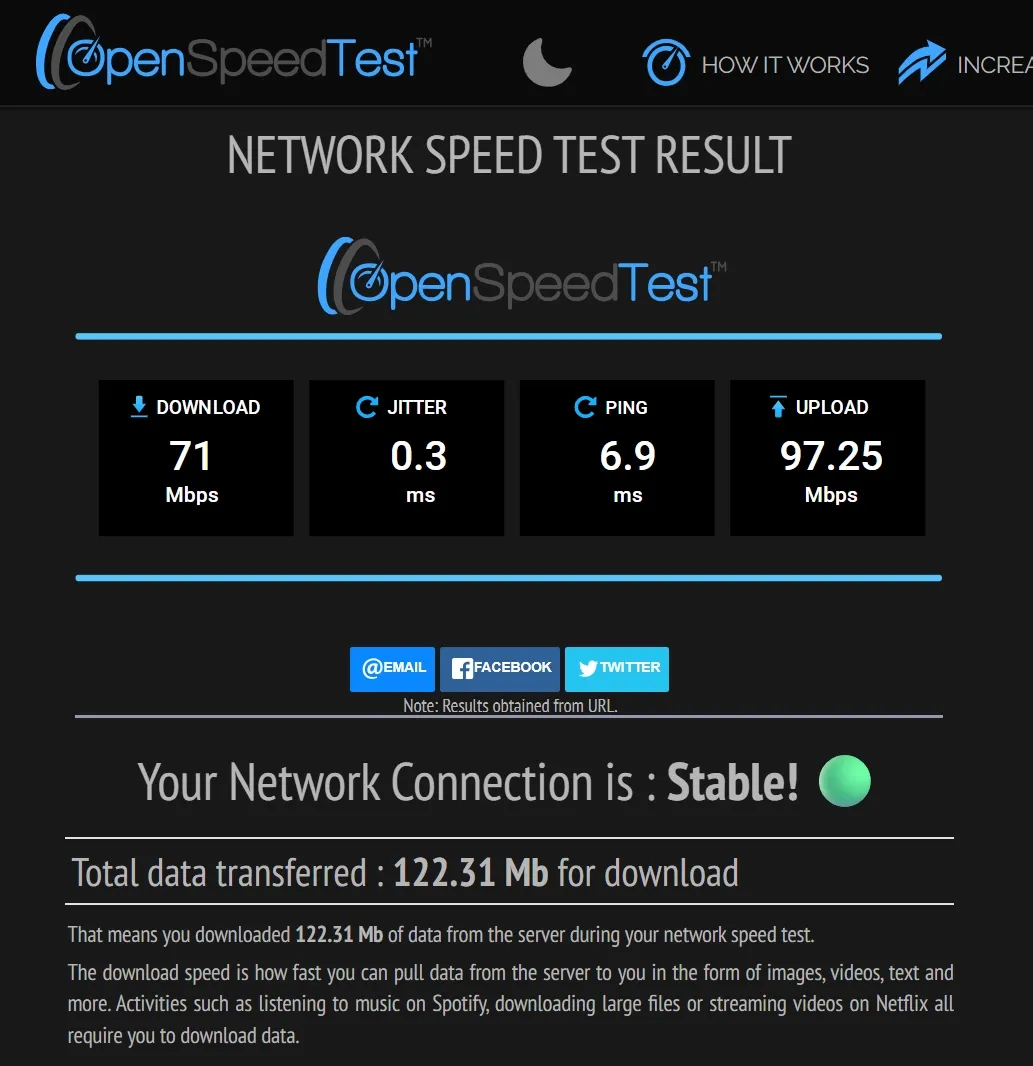
Self-hosting tools like OpenSpeedTest give you real visibility into your own infrastructure. No third-party limits, no external variables — just raw measurements between your devices and your server.
Give it a try in your home lab or VPS today, and let me know your results.