Speedtest Tracker: Monitor Your ISP Speeds Easily
Learn how to install Speedtest Tracker with Docker-Compose to monitor your ISP speeds over time. Perfect for self-hosting and home labs.

Why Monitor Your ISP Speeds?
Ever wonder if your ISP is giving you the speeds you’re paying for — not just once, but consistently over time? Speedtest Tracker is a self-hosted web app that automatically runs speed tests at set intervals and stores the results. You get clear graphs showing your internet speed trends over days, weeks, or months.
In this guide, we’ll install Speedtest Tracker in Docker using docker-compose. This is perfect for anyone running a home server or self-hosting environment.
Benefits of Ongoing Monitoring
Here’s why ongoing monitoring is worth it:
- Track ISP performance: See if your speeds drop during peak hours.
- Troubleshoot issues: Evidence helps when talking to your ISP.
- Home lab reliability: If you self-host services, you want stable bandwidth.
- Historical data: Spot patterns, outages, and bottlenecks.
Prerequisites
Before you start, make sure you have:
- Docker & docker-compose installed on your server or NAS.
- A little disk space (the database can grow over time).
- (Optional) A reverse proxy if you want HTTPS.
Step-by-Step Installation with Docker Compose
Below is a beginner-friendly docker-compose.yml file. It’s copy-paste-ready, but also includes inline comments for learning.
version: "3.8"

services:
  speedtest-tracker:
    image: ghcr.io/henrywhitaker3/speedtest-tracker:latest
    container_name: speedtest-tracker
    restart: unless-stopped
    ports:
      - "8080:80"                # Host port 8080 → Container port 80
    environment:
      APP_KEY: your-random-app-key # Required for security (generate below)
      DB_CONNECTION: sqlite        # SQLite by default (simple & built-in)
      TZ: "UTC"                    # Server time zone
      DISPLAY_TIMEZONE: "UTC"      # How times appear in the UI
      SPEEDTEST_SCHEDULE: "0 * * * *" # Every hour on the hour
    volumes:
      - ./data:/config             # Persist database & settings
Bring it up:
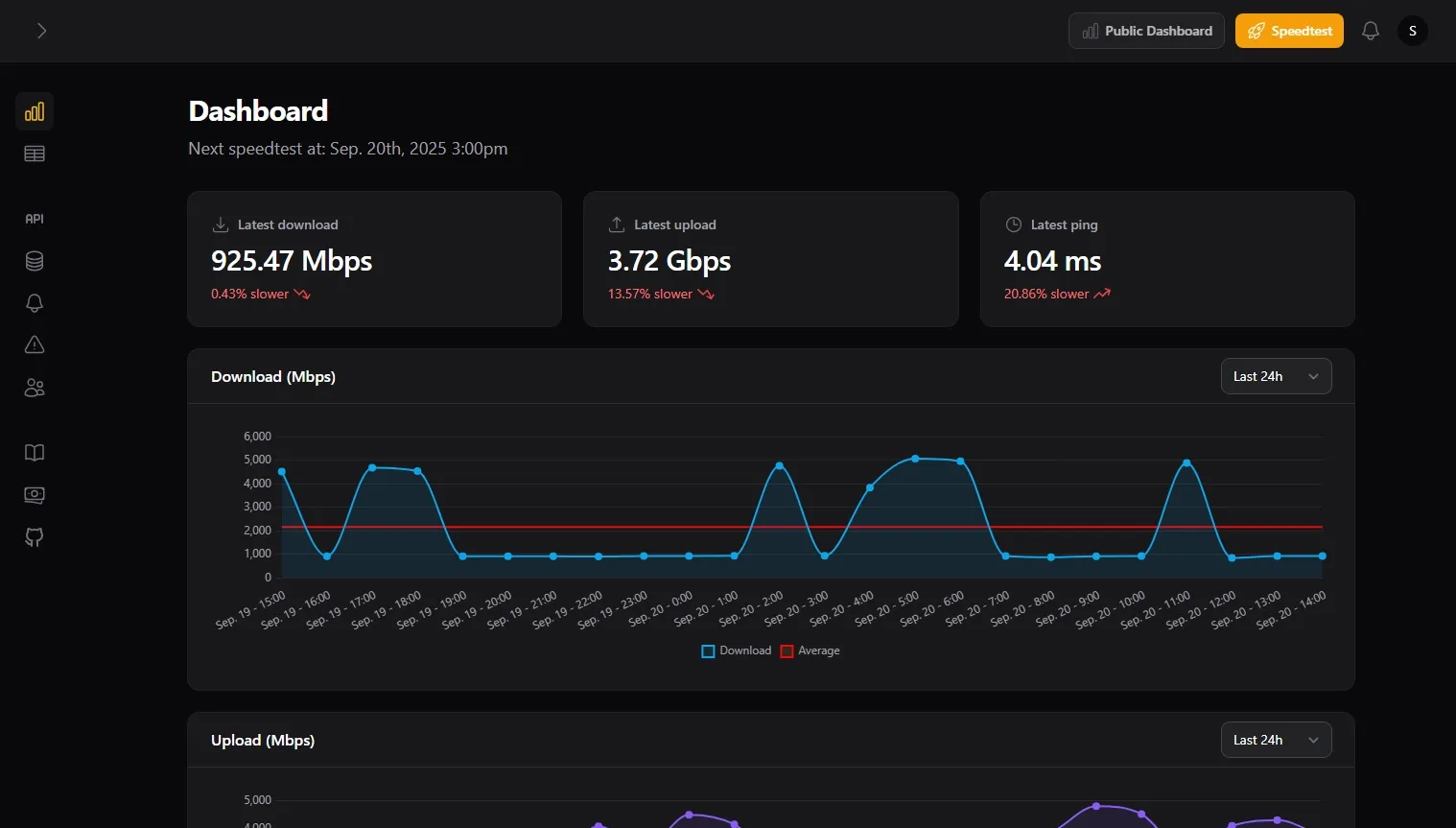
docker-compose up -dOpen your browser to http://your-server-ip:8080 and you should see Speedtest Tracker’s dashboard.
Understanding Key Environment Variables
Let’s break down the important settings:
-
APP_KEY – A random string used for encryption. Generate one with:
openssl rand -base64 32 -
DB_CONNECTION – Database backend.
sqliteis simplest (stored locally). Advanced users can usemysqlorpgsql. -
TZ – Sets the server’s time zone (important for scheduling). Example:
"Asia/Kathmandu". -
DISPLAY_TIMEZONE – Controls how times are shown in the web UI. Useful if your server is in UTC but you’re in another zone.
-
SPEEDTEST_SCHEDULE – Uses cron syntax to define when tests run. Default:
"0 * * * *"(every hour).
Cron Schedule Examples
Cron syntax looks scary, but here’s a simple cheat sheet:
* * * * * minute hour day month weekdayExamples:
-
Every hour (default):
0 * * * * -
Every 30 minutes:
*/30 * * * * -
Every day at 3am:
0 3 * * *
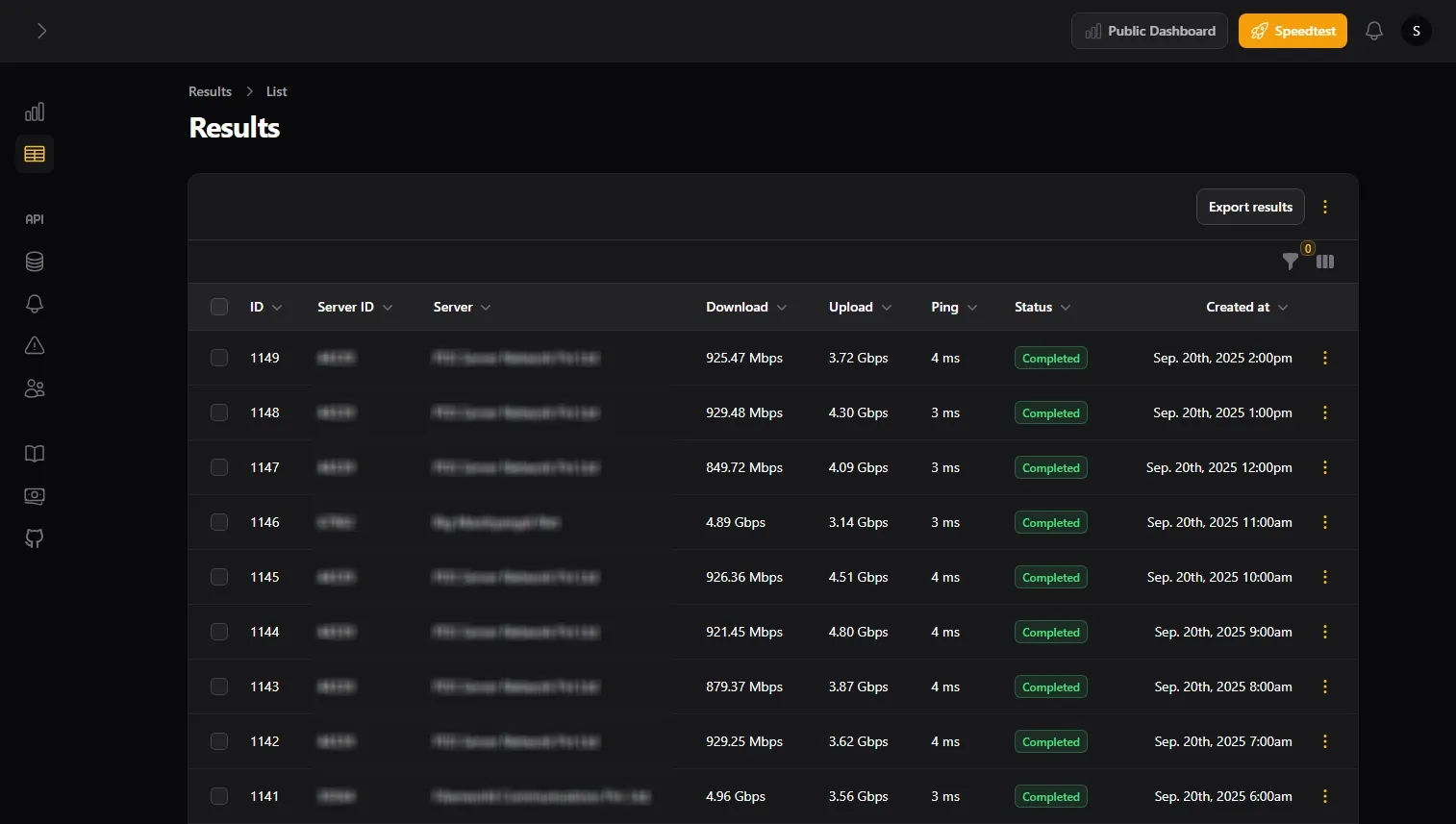
Adjust SPEEDTEST_SCHEDULE in your docker-compose.yml, then run:
docker-compose up -dto apply changes.
Notifications Overview
Speedtest Tracker supports notifications so you can get alerts when speeds dip. It can integrate with:
- Discord
- Slack
You’ll find these under Settings → Notifications in the UI. We’re not going deep here, but it’s nice to know it’s built-in.
Keeping Speedtest Tracker Updated
Keeping your stack updated is easy:
docker-compose pull
docker-compose up -d
This pulls the latest image and restarts the container with your saved data intact.
That’s it — you’ve just learned how to run Speedtest Tracker in Docker to monitor your ISP connection over time. With ongoing monitoring, you can catch ISP issues, troubleshoot bottlenecks, and keep your home lab running smoothly.
If you found this guide helpful, subscribe to GeekNP to get more self-hosting, networking, and sysadmin tutorials right in your inbox.