Upgrade Windows 10 to 11 with Flyoobe
Upgrade from Windows 10 to 11 easily using Flyoobe — a beginner-friendly open-source tool to bypass TPM checks and keep your PC running.
Microsoft ended security updates and technical assistance for Windows 10 on October 14, 2025, marking the end of an era for one of the company’s longest-running operating systems.
If you’re still using Windows 10 today, your system is now unprotected against new security vulnerabilities and may soon lose compatibility with newer software and drivers. It’s time to move forward — but many users find themselves stuck because of Windows 11’s restrictive hardware requirements like TPM 2.0, Secure Boot, and modern CPU support.
Thankfully, there’s a simple, open-source solution: Flyoobe — a lightweight upgrade assistant from Builtbybel that helps you upgrade safely and easily, even on older or unsupported PCs.
What Is Flyoobe?
Flyoobe is a modern Windows setup and customization toolkit created by Builtbybel, the developer behind well-known utilities like BloatyNosy and Cleanmgr+.
It began life as Flyby11, a tool for bypassing Windows 11’s upgrade restrictions. Over time, it evolved into a complete Windows Setup + OOBE (Out-of-Box Experience) solution, designed to automate installation, simplify configuration, and remove unnecessary system bloat — all while keeping things safe and transparent.
Key Features
- Bypass Hardware Restrictions – Automatically skips TPM 2.0, Secure Boot, and CPU checks.
- Automate Setup – Handles ISO downloads, mounting, and setup automation.
- Customize OOBE – Lets you personalize user accounts, privacy settings, and appearance after setup.
- Remove Bloatware – Cleans out unnecessary apps during or after installation.
Design Philosophy
Flyoobe isn’t about hacking or forcing Windows 11 onto unsupported systems; it’s about giving users freedom and extending hardware life.
It promotes sustainability by reducing e-waste and ensures that capable older devices can continue running modern software securely.
Technical Overview — How Flyoobe Works
Flyoobe relies on Microsoft’s Windows Server setup engine, which naturally omits the restrictive consumer checks present in the standard Windows 11 installer.
This allows it to:
- Skip TPM 2.0 and Secure Boot verification
- Ignore unsupported CPU lists
- Maintain a genuine, stable installation structure
It also uses Fido, an integrated script that downloads official Windows ISOs directly from Microsoft — no third-party downloads, no risk of tampered files.
Advantages and Limitations
Advantages
✅ Beginner-Friendly GUI – Ideal for non-technical users.
✅ Fully Automated – No registry edits or command-line scripts required.
✅ Portable and Lightweight – Runs directly, no installation needed.
✅ Open Source (MIT License) – Transparent, secure, and community-audited (5.1k+ GitHub stars).
✅ Eco-Friendly – Extends the life of older PCs and reduces waste.
Limitations
⚠️ POPCNT CPU Instruction Still Required – CPUs without this instruction cannot boot Windows 11 24H2 or newer.
⚠️ Update Eligibility May Differ – Unsupported systems might require manual feature updates in the future.
Step-by-Step Upgrade Guide
Upgrading with Flyoobe is easier and safer than manual registry tweaks or command-line setups. Follow these steps.
Before You Start
-
Back Up Important Data
Use File History or create a system image. -
Download the Latest Flyoobe Release
👉 https://github.com/builtbybel/Flyoobe/releases -
Plug In Power & Stay Connected
Setup downloads large files and may take an hour or more.
Run the Tool
-
Extract the ZIP Archive
Unpack Flyoobe into a folder. -
Launch as Administrator
Right-click → Run as Administrator. -
Select “Upgrade Windows 10 → 11”
Flyoobe will handle everything else.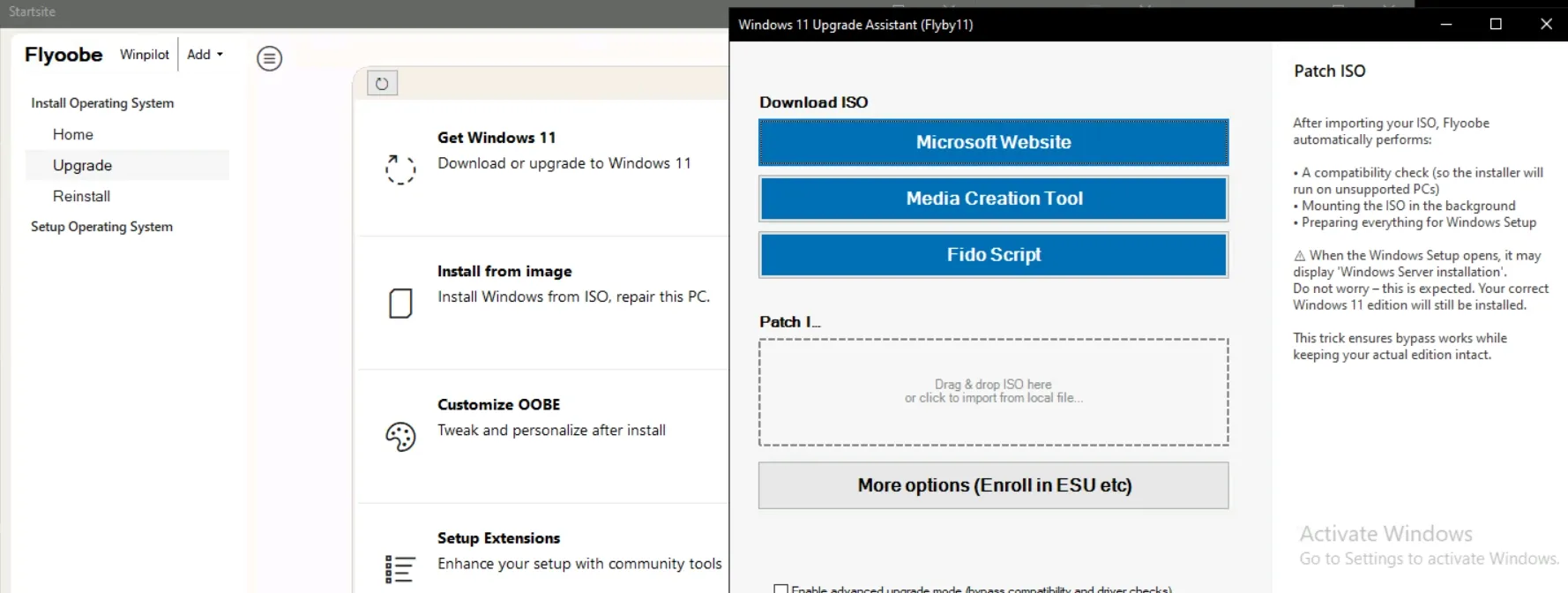
-
Let It Run
Flyoobe downloads or locates the Windows 11 ISO, applies the necessary bypasses, and starts setup automatically.
⚙️ Important:
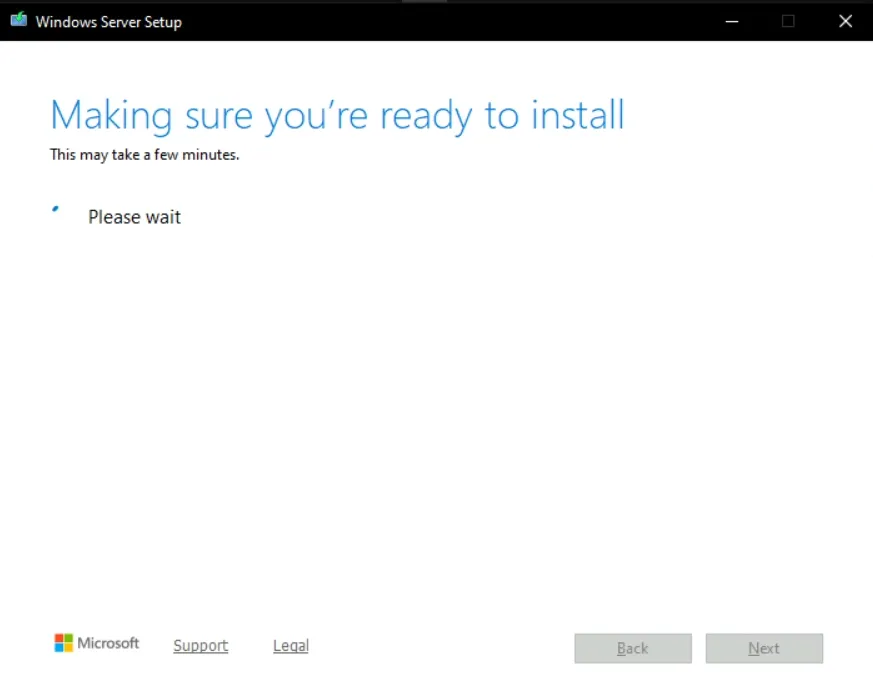
During setup, you may briefly see “Windows Server” appear on the installation window.
This is completely normal — Flyoobe uses the Windows Server setup engine internally to skip TPM, Secure Boot, and CPU checks.
Your final system will still be Windows 11, not Windows Server, so you can safely ignore the label and continue the process.

After the Upgrade
-
Verify Drivers
Open Device Manager and confirm there are no missing drivers. -
Test Your Apps
Confirm your software and files carried over.
Troubleshooting & Rollback
Even well-tested upgrades can run into snags. Here’s how to recover.
Issue
Cause
Fix
ISO not detected
Corrupted or missing ISO
Redownload via Flyoobe
“Unsupported CPU” error
Missing POPCNT
Use Windows 11 23H2 instead
Setup stuck
Low space or unstable power
Free 25 GB+ and retry
Roll Back to Windows 10
If you upgraded within the past 10 days:
- Go to Settings → System → Recovery
- Select Go back under Previous version of Windows.
If not available, restore from your backup or reinstall Windows 10 manually.
Open Source & MIT License
Flyoobe is fully open source under the MIT License, guaranteeing:
- No hidden code or telemetry
- No system file modifications
- Full auditability
It automates Microsoft’s own upgrade logic for stability and compatibility.
Conclusion & Recommendations
With Windows 10 support officially over, upgrading is no longer optional — it’s essential.
For users who want to keep using older but capable hardware, Flyoobe offers the simplest, safest, and most transparent way to transition to Windows 11.
If your PC still runs smoothly, upgrade using Flyoobe today.
If your system has deep issues or missing drivers, a clean Windows 11 installation may still be the best path forward.
Final Thoughts
Windows 10’s sunset doesn’t have to mean your computer’s end.
Tools like Flyoobe help keep older machines secure and functional, emphasizing freedom, sustainability, and practicality.
If this guide helped you, follow GeekNP for more hands-on tutorials about self-hosting, secure system management, and reliable infrastructure.