Why I Type With Colemak (And Why You Might Too)
Discover why I switched to the Colemak layout — a faster, more comfortable way to type that your fingers will thank you for.
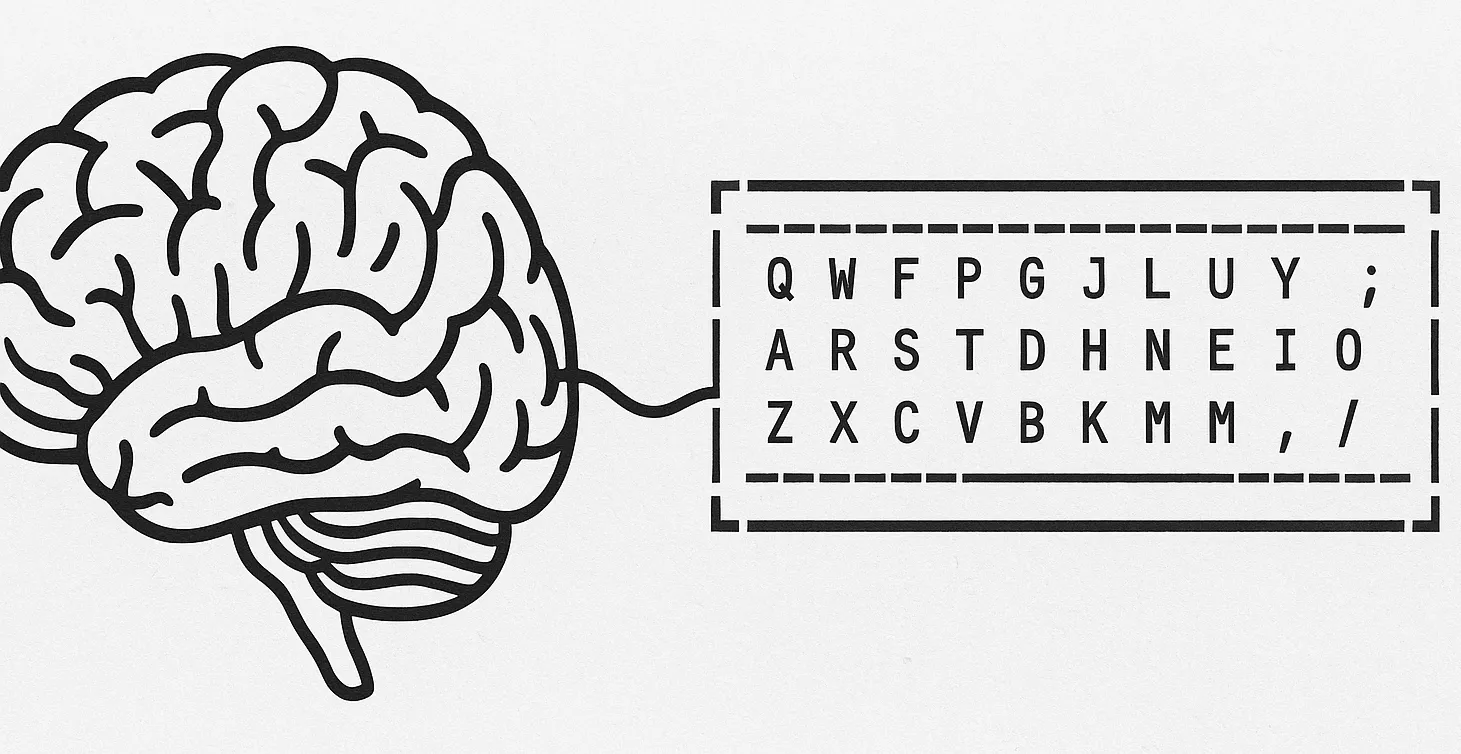
I spend an embarrassing amount of my life typing. Config files, blog posts, commit messages that are half apology, half poetry — it all adds up. One day I realized my fingers were staging a quiet rebellion: stiff joints, tired wrists, and a growing suspicion that QWERTY might not be the hill to die on.
So I did what any self-respecting geek with too many opinions about keyboards would do: I changed everything.
I switched to the Colemak layout — a modern reimagining of the keyboard that doesn’t punish you for existing. It’s faster, smoother, and surprisingly elegant. And once you get used to it, going back to QWERTY feels like typing with oven mitts.
If you’ve ever wondered why some people voluntarily unlearn decades of muscle memory, this post is for you.
What Is the Colemak Layout?
Colemak is a keyboard layout designed in 2006 by Shai Coleman. The goal was simple: create a layout that’s comfortable, efficient, and familiar enough that switching wouldn’t require a brain transplant.
Unlike Dvorak — which completely rearranges alphabet like a toddler organizing magnets on the fridge — Colemak keeps most punctuation and shortcuts (Ctrl + C, Ctrl + V, etc.) in their usual places. It mainly repositions the letters you type the most, optimizing for minimal finger travel and balanced hand use.
In short: Colemak doesn’t reinvent the wheel — it just makes it rounder.

Here’s a rough ASCII-style snapshot to visualize the change:
QWERTY:
Q W E R T Y U I O P
A S D F G H J K L ;
Z X C V B N M , . /

Colemak:
Q W F P G J L U Y ;
A R S T D H N E I O
Z X C V B K M , . /
Notice how most letters stay where your fingers already live — but the high-frequency ones (E, T, N, S) are repositioned to your home row, where your fingers naturally rest. The result? Less stretching, more speed, and fewer typos born of fatigue.
The QWERTY Story: How We Got Here
Before we blame QWERTY for our carpal woes, it’s worth knowing how we ended up here.
The QWERTY layout dates back to the 1870s, designed for the Sholes and Glidden typewriter. Back then, the biggest problem wasn’t repetitive strain injury — it was typebar jams. Early typewriters would physically tangle if you pressed two nearby keys too quickly. So QWERTY spaced out common letter pairs to slow typists down. Yes, you read that right.
Fast-forward 150 years, and we’re still using a layout optimized for mechanical arms made of steel, not biological ones made of tendons.
Legacy inertia is strong — especially when it’s baked into every laptop, coding bootcamp, and muscle memory in existence.
Colemak vs QWERTY: The Key Difference
Colemak’s magic lies in how little your fingers need to move. On QWERTY, only about 30% of typing happens on the home row — the one your fingers rest on. Colemak pushes that number to around 70%. That’s a massive reduction in effort over thousands of keystrokes.
Imagine this as heatmaps of finger travel:
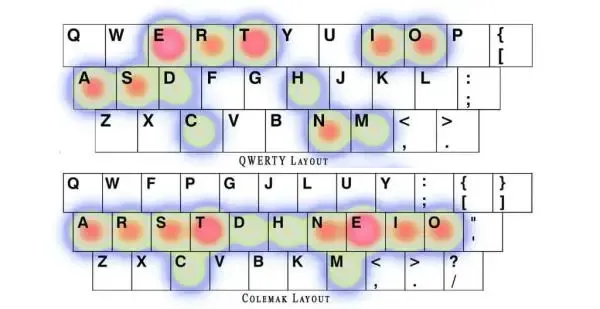
In QWERTY, your poor index fingers are doing the equivalent of sprinting a marathon while your pinkies suffer from chronic overuse. In Colemak, the work is shared more evenly, and most typing happens right where your fingers already are.
If QWERTY is a clunky sedan, Colemak is an electric car — same road, same rules, just smoother.
You’ll also notice that shortcuts like Ctrl + C, Ctrl + V, and Ctrl + Z stay exactly where you expect them. That’s by design. Dvorak and some other layouts move these keys around, which can make everyday computing feel like learning a foreign language mid-flight.
Other Layouts: Dvorak, Workman & Friends
Colemak isn’t the only alternative to QWERTY, but it’s arguably the most practical.
- Dvorak Simplified Keyboard (1936): The granddaddy of ergonomic layouts. Super-efficient, but it rearranges everything, making the transition brutal for programmers or shortcut-heavy users.
- Workman (2010): A modern take that adjusts for vertical hand movement, particularly for staggered keyboards. It’s a nice idea but less standardized.
- Colemak-DH: A community tweak that slightly shifts the D and H keys for better ergonomics on row-staggered keyboards.
Colemak strikes a smart balance — you get measurable comfort gains without breaking every muscle memory you’ve ever had.
Think of it as the Debian of keyboard layouts: opinionated, efficient, but sensible enough not to break your workflow.
Why I Switched to Colemak (And How My Fingers Thanked Me)
A few years back, after a long day of writing configs and documentation, I realized my hands hurt. Not “I’ve been typing too long” hurt — more like “my tendons are filing a workplace grievance” hurt.
So, I did what any rational geek would do: I researched keyboard layouts for three hours straight, fell into a Reddit rabbit hole, and installed Colemak the same night.
The first week? Chaos. Every sentence was a typo salad. I’d type wtht instead of that, and even my passwords mocked me. But after about two weeks of steady practice — 15 minutes a day on Keybr.com — something clicked.
My fingers stopped stretching like they were doing yoga on caffeine. Typing felt… quiet. Relaxed. Almost meditative.
After a month, I was back to my old QWERTY speed. After three months, I was faster.
But the biggest win wasn’t speed — it was comfort. My wrists stopped aching, and I could write or code for hours without that creeping fatigue.
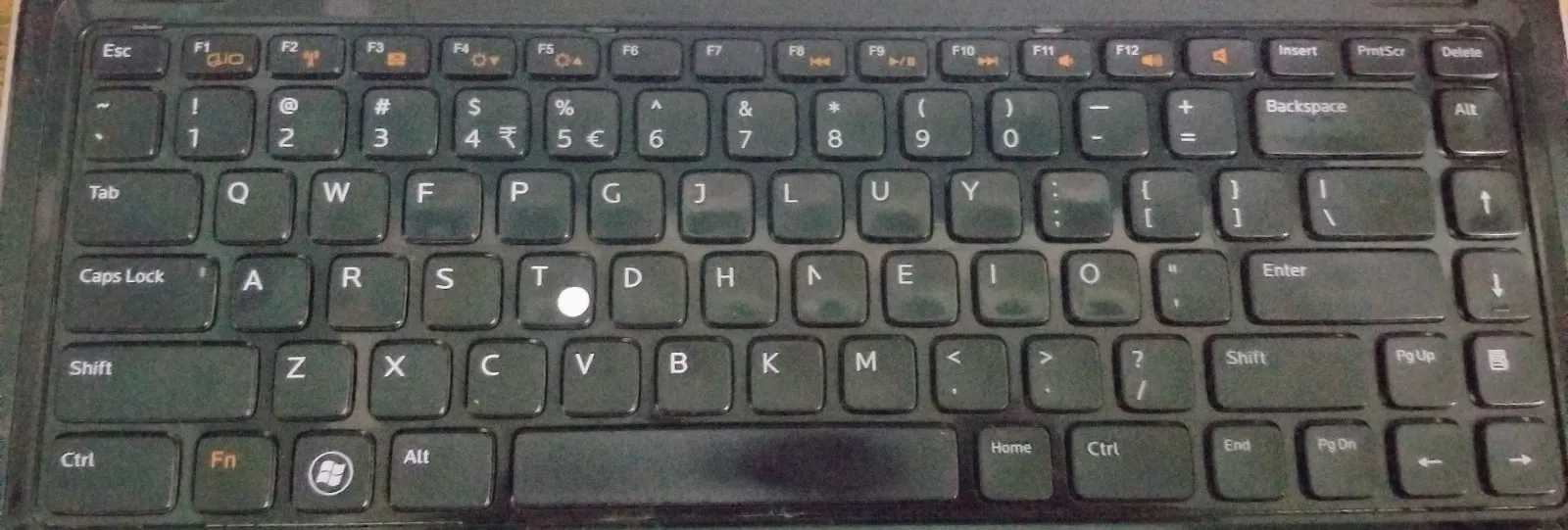
My keyboard setup with Colemak layout
Colemak isn’t magic — it won’t fix bad posture or an awful chair. But it does make typing feel more natural, like your keyboard finally understands you.
How to Learn Colemak Without Losing Your Mind
Switching layouts is kind of like migrating servers — risky if you rush, smooth if you plan.
Here’s what worked for me:
-
Start Small.
Begin with short typing sessions on Keybr.com or Monkeytype. Build accuracy first; speed comes later. -
Use a Transitional Layout.
Colemak offers a “Colemak Mod-DH” or “Colemak-Tarmak” series — stepwise versions that let you transition gradually, a few keys at a time. -
Remap Smartly.
Use your OS’s keyboard settings or tools like Colemak.org to enable it system-wide. On Linux, it’s a simplesetxkbmap us colemak. On macOS, it’s in System Preferences → Keyboard → Input Sources. Windows users can install the official layout or use AutoHotkey for custom tweaks. -
Practice Patience.
For the first week, you’ll feel like your fingers forgot how English works. That’s normal. Keep at it — muscle memory rebuilds faster than you think. -
Track Your Progress.
Log your WPM (words per minute) over time. It’s satisfying to watch it climb back up — and beyond.
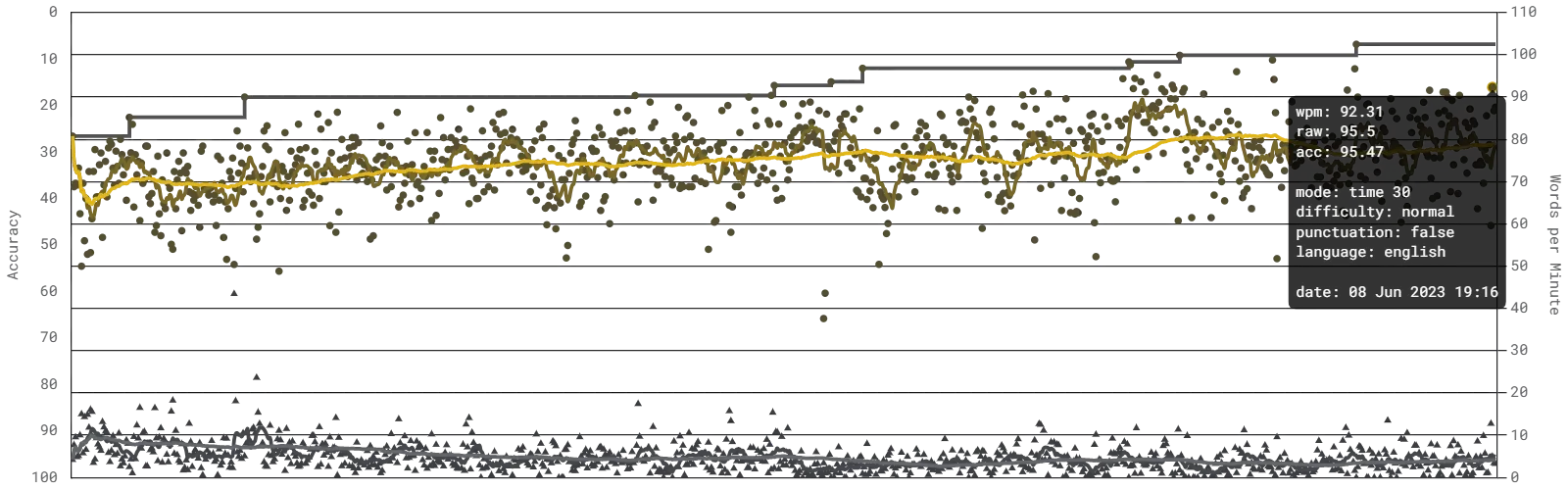
Typing speed progression chart after switching
- Stay Consistent.
Don’t switch back and forth between layouts unless absolutely necessary. Consistency beats intensity here.
Pro tip: If you use multiple machines, sync your layout settings or use portable keyboard firmware (like VIA/QMK) so your Colemak travels with you.
Final Thoughts: Should You Try Colemak?
Colemak isn’t for everyone — if you’re a casual typer, QWERTY might be good enough. But if you type for hours every day — coding, writing, documenting — your hands deserve better tools.
Switching to Colemak feels like upgrading from a squeaky office chair to a perfectly tuned mechanical keyboard. You don’t realize how uncomfortable things were until you fix them.
The hardest part is unlearning habit. The best part? Realizing that typing — something we do for thousands of hours a year — doesn’t have to hurt.
So, should you try Colemak? Absolutely.
Just don’t do it right before a big deadline. Trust me.
Your turn: Have you tried Colemak or another layout like Dvorak or Workman?
Drop your experience in the comments — I’d love to hear how your fingers are surviving the great layout wars.