Enable Multiple RDP Sessions on Windows 11
Learn how to enable multiple concurrent RDP sessions in Windows 11 Enterprise Multi-Session with simple step-by-step commands.
Welcome back to GeekNP — and happy 25th post! 🎉
If you’ve ever tried to remote into your Windows machine from multiple devices at once, you’ve probably hit the “only one user allowed” wall. By default, Windows only allows a single Remote Desktop Protocol (RDP) session at a time.
But what if you’re building a home lab, testing user sessions, or running lightweight VMs for your projects? That’s where Windows 11 Enterprise Multi-Session comes in — and it’s surprisingly easy to set up for testing.
Let’s walk through what this special edition is, how to upgrade to it, and how to enable multiple concurrent RDP sessions step by step.
What Is Windows Enterprise Multi-Session?
Windows 11 Enterprise Multi-Session (also known as Enterprise for Virtual Desktops or ServerRdsh) allows multiple users to log in simultaneously via Remote Desktop — similar to a lightweight Windows Server with RDS.
In earlier releases, it was known as:
- Windows 10 Enterprise for Remote Sessions
- Windows 10 Enterprise for Virtual Desktops
This edition is perfect for multi-user access, training labs, or testing applications that need separate user sessions.
⚠️ Disclaimer:
The steps below are for learning and lab testing only.
How to Upgrade to Windows Enterprise Multi-Session
You can convert your Windows 11 Pro or Enterprise install into Enterprise Multi-Session using built-in tools like DISM, changepk.exe, and slmgr.vbs.
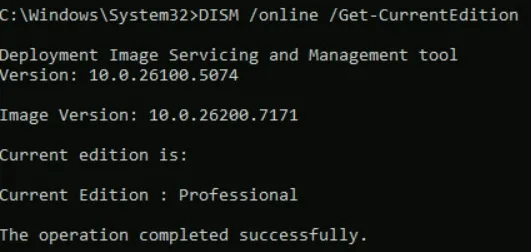
Step 1 – Check Your Current Edition
Open Command Prompt as Administrator and run:
DISM /online /Get-CurrentEditionThis will show your current Windows edition. For example, you might see Professional or Enterprise.
Step 2 – Enter Generic Keys for Enterprise Multi-Session
Run these commands one by one.
changepk.exe /ProductKey NPPR9-FWDCX-D2C8J-H872K-2YT43
slmgr.vbs /ipk CPWHC-NT2C7-VYW78-DHDB2-PG3GK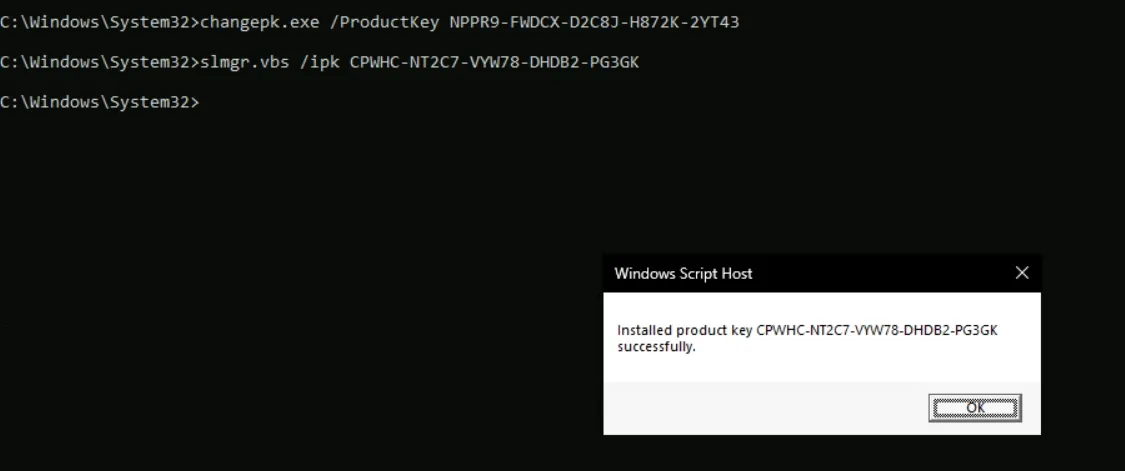
Step 3 – Verify the Edition
Check that your edition now shows as Enterprise Multi-Session.
Run this PowerShell command:
Get-ComputerInfo | select WindowsProductName, WindowsVersion, OsHardwareAbstractionLayer
Ignore the Windows 10 product name
Enable Multiple RDP Sessions
Now that you’re running the right edition, it’s time to configure Remote Desktop Session Host (RDSH) to support multiple users.
Step 1 – Open Local Group Policy Editor
Press Win + R, type gpedit.msc, and hit Enter.
Then navigate to:
- Computer Configuration
→ Administrative Templates
→ Windows Components
→ Remote Desktop Services
→ Remote Desktop Session Host
→ Licensing
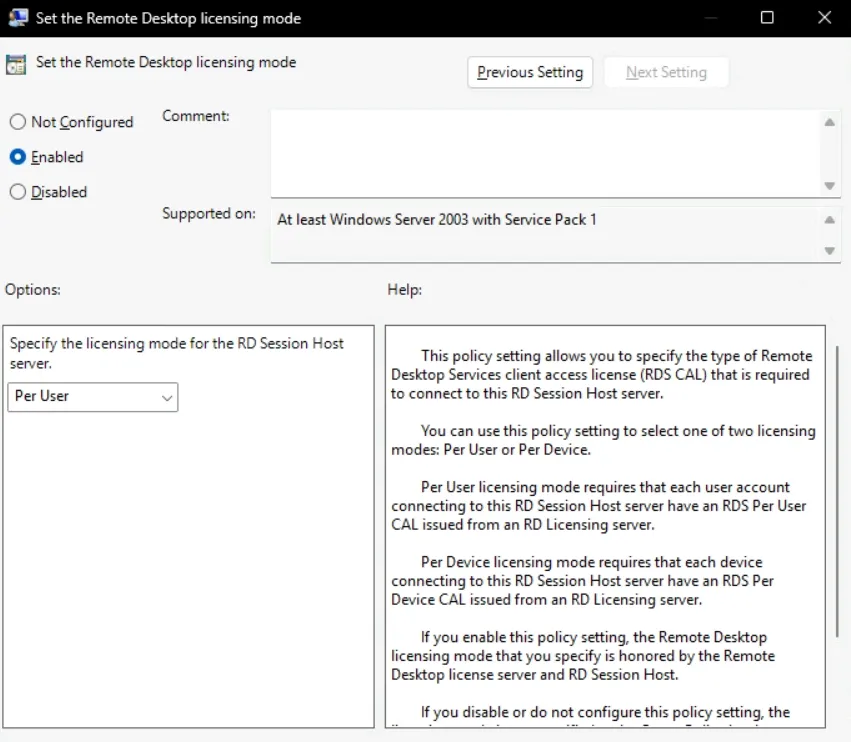
Step 2 – Enable Per-User Licensing Mode
Double-click “Set the Remote Desktop licensing mode” and choose Enabled, then select Per User from the dropdown.
This allows multiple user sessions to run concurrently — each with its own isolated desktop environment.
Step 3 – Adjust Connection Limits (Optional)
If you want to specify how many concurrent sessions are allowed:
- In the same Group Policy tree, go to:
Remote Desktop Session Host -> Connections - Open “Limit number of connections” and set it to your desired number (e.g., 5).
Apply and reboot your machine.
Verify Your Setup
After rebooting, try logging in from two different accounts using RDP — either from another PC or through mstsc.exe.
You should now see both users logged in independently, without one session disconnecting the other.
To confirm multiple sessions are active, open Task Manager → Users tab. You’ll see each active session listed by username.
That’s it — you’ve got multiple RDP sessions running on Windows 11!
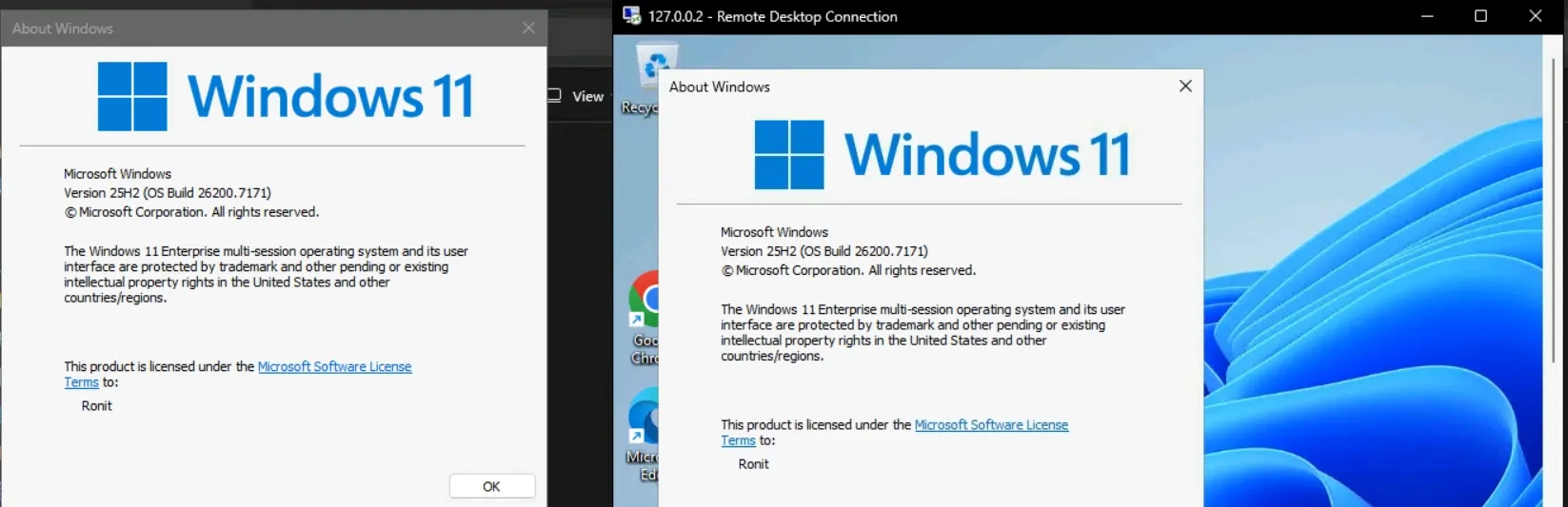
And there you go — you’ve just unlocked multi-user Remote Desktop on Windows 11 Enterprise Multi-Session.
This setup is perfect for:
• Testing user-based configurations
• Multi-user home labs
• Learning how Remote Desktop Session Host works
Each season brings new shirt details that supporters compare with earlier designs. Anyone reviewing club collections can use Manchester City jersey(camiseta del Manchester City) to focus on the matching design. Home and away versions can serve different preferences while representing the same team.
Always keep your testing local and educational.
If you’re managing multiple users remotely, this setup gives you a hands-on look at how enterprise environments scale RDP access efficiently.